Digital Wellbeing Contract: Conclusion

A lot of progress has been made since my last Digital Wellbeing update two months ago. That post covered the initial screen time limits feature, which was implemented in the Parental Controls app, Settings and GNOME Shell. There’s a screen recording in the post, created with the help of a custom GNOME OS image, in case you’re interested.

Finishing Screen Time Limits

After implementing the major framework for the rest of the code in GNOME Shell, we added the mechanism in the lock screen to prevent children from unlocking when the screen time limit is up. Parents are now also able to extend the session limit temporarily, so that the child can use the computer until the rest of the day.

Parental Controls Shield

Screen time limits can be set as either a daily limit or a bedtime. With the work that has recently landed, when the screen time limit has been exceeded, the session locks and the authentication action is hidden on the lock screen. Instead, a message is displayed explaining that the current session is limited and the child cannot login. An “Ignore” button is presented to allow the parents to temporarily lift the restrictions when needed.

Parental Controls shield on the lock screen, preventing the children from unlocking

Extending Screen Time

Clicking the “Ignore” button prompts the user for authentication from a user with administrative privileges. This allows parents to temporarily lift the screen time limit, so that the children may log in as normal until the rest of the day.

Authentication dialog allowing the parents to temporarily override the Screen Time restrictions

Showcase

Continuing the screen cast of the Shell functionality from the previous update, I’ve recorded the parental controls shield together, and showed the extending screen time functionality:

GNOME OS Image

You can also try the feature out for yourself, with the very same GNOME OS live image I’ve used in the recording, that you can either run in GNOME Boxes, or try on your hardware if you know what you’re doing 🙂

Conclusion

Now that the full Screen Time Limits functionality has been merged in GNOME Shell, this concludes my part in the Digital Wellbeing Contract. Here’s the summary of the work:

  • We’ve redesigned the Parental Controls app and updated it to use modern GNOME technologies
  • New features was added, such as Screen Time monitoring and setting limits: daily limit and bedtime schedule
  • GNOME Settings gained Parental Controls integration, to helpfully inform the user about the existence of the limits
  • We introduced the screen time limits in GNOME Shell, locking childrens’ sessions once they reach their limit. Children are then prevented from unlocking until the next day, unless parents extend their screen time

In the initial plan, we also covered web filtering, and the foundation of the feature has been introduced as well. However, integrating the functionality in the Parental Controls application has been postponed to a future endeavour.

I’d like to thank GNOME Foundation for giving me this opportunity, and Endless for sponsoring the work. Also kudos to my colleagues, Philip Withnall and Sam Hewitt, it’s been great to work with you and I’ve learned a lot (like the importance of wearing Christmas sweaters in work meetings!), and to Florian Müllner, Matthijs Velsink and Felipe Borges for very helpful reviews. I also want to thank Allan Day for organizing the work hours and meetings, and helping with my blog posts as well 🙂 Until next project!

Digital Wellbeing Contract: Screen Time Limits

It’s been four months since my last Digital Wellbeing update. In that previous post I talked about the goals of the Digital Wellbeing project. I also described our progress improving and extending the functionality of the GNOME Parental Controls application, as well as redesigning the application to meet the current design guidelines.

Introducing Screen Time Limits

Following our work on the Parental Controls app, the next major work item was to implement screen time limits functionality, offering the parents ability to check the child’s screen time usage, set the time limits, and lock the child account outside of a specified curfew. This feature actually spanned across *three* different GNOME projects:

  • Parental Controls: Screen Time page was added to the Parental Controls app, so that parents can view child screen usage an set the time limits, it also includes a detailed bar chart
  • Settings: Wellbeing panel needed to make its own time limits settings impossible to change when the child has parental controls session limits enabled, since they are not in effect in such situation. There’s now also a banner with an explanation that guides to the Parental Controls app
  • Shell: Child session needed to actually lock when the limit was reached

Out of all of the three above, the Parental Controls and Shell changes have been already merged, while the Settings integration has been through unwritten review during the bi-weekly Settings meeting and adjusted to the feedback, so it’s only a matter of time now before it reaches the main branch as well. You can find the screenshots of the added functionalities below, and the reference designs can be find in the app-mockups and os-mockups tickets.

Child Screen Usage

When viewing a managed account, a summary of screen time is shown with actions for changing further settings, as well as actions to access additional settings for restrictions and filtering.

Child account view with added screen time overview and action for more options

The Screen Time view shows an overview of the child’s account’s screen time as well as controls which mirror those of the Settings panel to control screen limits and downtime for the child.

Screen Time page with detailed screen time records and time limit controls

Settings Integration

On the Settings side, a child account will see a banner in the Wellbeing panel that lets them know some settings cannot be changed, with a link to the Parental Controls app.

Wellbeing panel with a banner informing that limits can only be changed in Parental Controls

Screen Limits in GNOME Shell

We have implemented the locking mechanism in GNOME Shell. When a Screen Time limit is reached, the session locks, so that the child can’t use the computer for the rest of the day.

Following is a screen cast of the Shell functionality:

Preventing children from unlocking has not been implemented yet. However, fortunately, the hardest part was implementing the framework for the rest of the code, so hopefully the easier graphical change will take less to implement and the next update will be much sooner than this one.

GNOME OS Images

You don’t have to take my word for it, especially since one can notice I’ve had to cut the recording at one point (forgot that one can’t switch users in the lock screen :P) – you can check out all of these features in the very same GNOME OS live image I’ve used in the recording, that you can either run in GNOME Boxes, or try on your hardware if you know what you’re doing 🙂

Malcontent Changes

While all of these user facing changes look cool, none of them would be actually possible without the malcontent backend, which Philip Withnall has been working on. While the daily schedule had already been implemented, the daily limit session limit had to be added, as well as malcontent timer daemon API for Shell to use. There has been many other improvements, web filtering daemon has been added, which I’ll use in the future for implementing Web Filtering page in Parental Controls app.

Conclusion

Our work for the GNOME Foundation is funded by Endless and Dalio Philanthropies, so kudos to them! I want to thank Florian Müllner for his patience too, during the very educative for me merge request review, and answering to all of my Shell development wonderings. I also want to thank Matthijs Velsink and Felipe Borges for finding time to review the Settings integration.

Now that this foundation has been made, we’ll be focusing on finishing the last remaining bit of the session limits support in Shell, which is tweaking the appearance of lock screen when the limit is reached, and implementing the ignore button for extending screen limit, as well as notifications, followed by Web Filtering support in Parental Controls. Until next update!

Digital Wellbeing Contract: Redesign

This month I have been accepted as a contractor to work on the Parental Controls frontend and integration as part of the Digital Wellbeing project. I’m very happy to take part in this cool endeavour, and very grateful to the GNOME Foundation for giving me this opportunity – special thanks to Steven Deobald and Allan Day for interviewing me and helping me connect with the team, despite our timezone compatibility 😉

The idea is to redesign the Parental Controls app UI to bring it on par with modern GNOME apps, and integrate the parental controls in the GNOME Shell lock screen with collaboration with gnome-control-center. There are also new features to be added, such as Screen Time monitoring and setting limits, Bedtime Schedule and Web Filtering support. The project has been going for quite some time, and there has been a lot of great work put into both designs by Sam Hewitt and the backend by Philip Withnall, who’s been really helpful teaching me about the project code practices and reviewing my MR. See the designs in the app-mockups ticket and the os-mockups ticket.

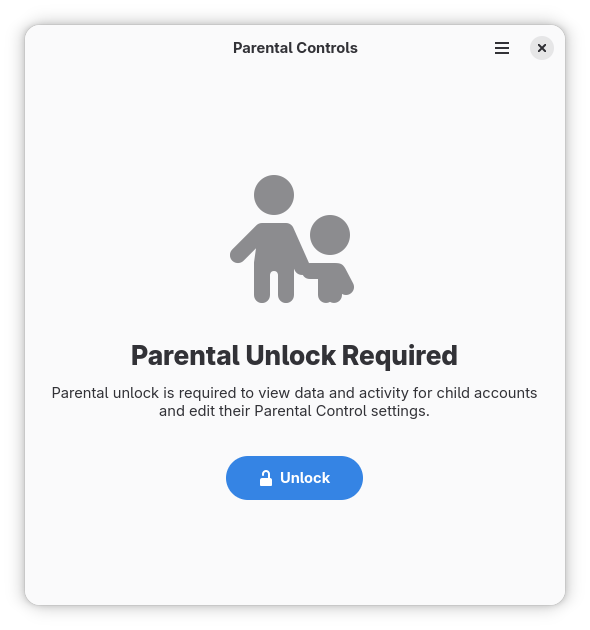
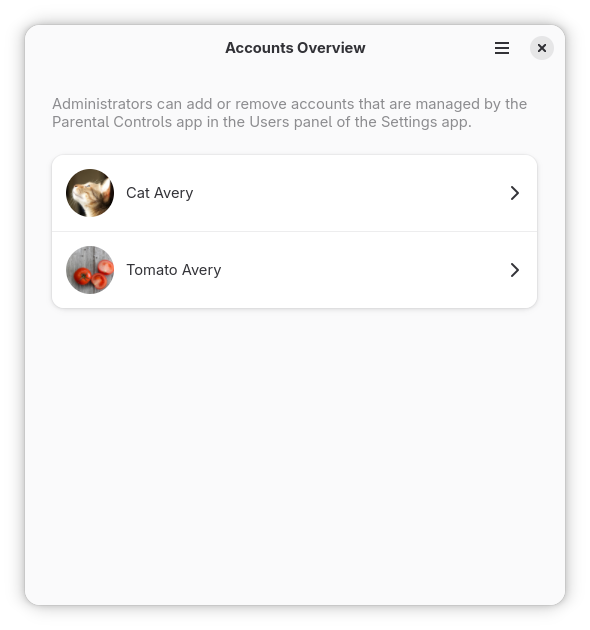
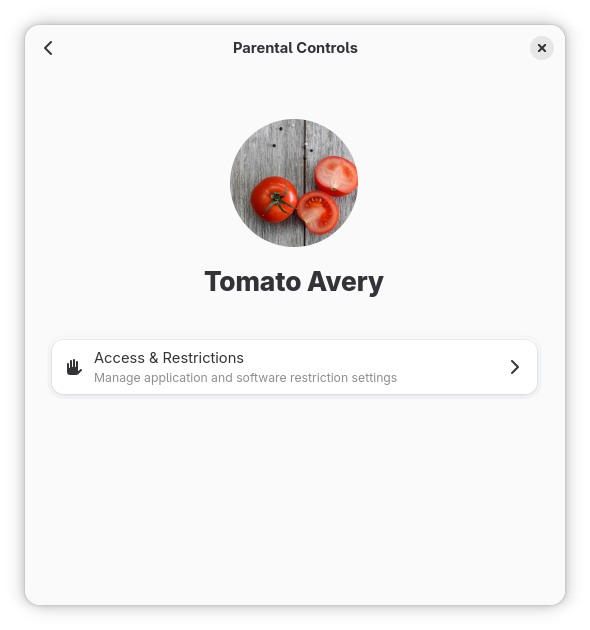
We started implementing the design mockup MVP for Parental Controls, which you can find in the app-mockup ticket. We’re trying to meet the GNOME 49 release deadlines, but as always it’s a goal rather than certain milestone. So far we have finished the redesign of the current Parent Controls app without adding any new features, which is to refresh the UI for unlock page, rework the user selector to be a list rather than a carousel, and changed navigation to use pages. This will be followed by adding pages for Screen Time and Web Filtering.

Refreshed unlock page
Reworked user selector
Navigation using pages, Screen Time and Web Filtering to be added

I want to thank the team for helping me get on board and being generally just awesome to work with 😀 Until next update!