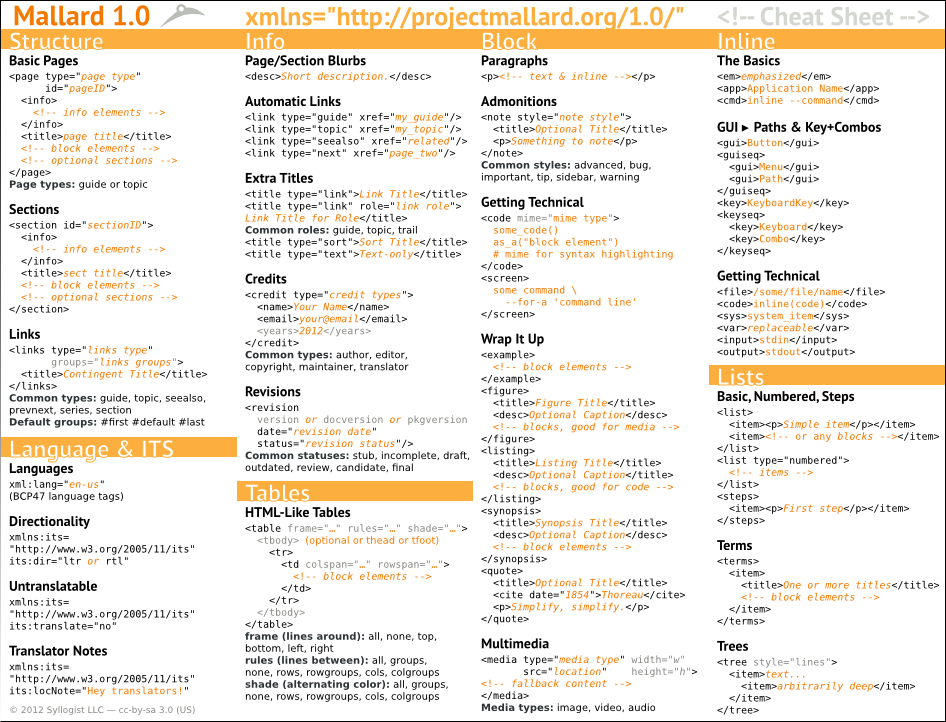
Mallard Cheat Sheet
2012-01-29
Mallard cheat sheet:
Mobile Mallard and Conditional Processing
2012-01-17
Last time, I gave a demo of a Mallard document rendered in a way that adapts to handheld devices like phones. Because Mallard is not a presentational language, most of the formatting can be adjusted automatically, and authors don’t have to worry about anything. But sometimes, you really do want to change the content when viewing on a handheld device.
First, though, let’s look at some specific formatting differences between desktop and mobile. For each of the pages below, click the ‘Desktop’ and ‘Mobile’ links above the iframe to see the difference.
- Desktop Help – The purely decorative hover previews are turned off for mobile. (Good luck hovering with your finger anyway.) Also, the three-column grid changes to a two-column grid.
- Delete files and folders – The notes and step lists use all the available horizontal space. The automatic links at the bottom fill the whole page width as well.
- Sound, video & pictures – The two-column link layout changes to a single column, and the link boxes span the entire page width, making them easier to tap.
But sometimes we add content that’s visually helpful on large screens, but cumbersome at small sizes. Things like screenshots are often nice to have, as long as they don’t get in the way. This is where conditional processing comes into play. I’ve been busy retooling Mallard conditional processing to allow things like this:
<media src="figures/shell-top-bar.png" if:test="!target:mobile"/>
The result is an image that’s only displayed in non-mobile reading environments. Switch between desktop and mobile on these pages to see it in action:
This isn’t limited to images, of course. You can use conditional processing on any block element or list item. What’s more, Mallard conditional processing allows full branching and fallback, giving you an easy way to display one thing for the desktop, and something else for mobile.
Mobile Help With Mallard
2012-01-12
Don’t want to read? Skip to the Mobile Mallard demo.
As people use more and more mobile devices, it’s important that we can deliver help in a way that feels comfortable to users. It’s not just about help for mobile apps. Look at any book on documentation from the 80s or 90s and you’ll see an example about a field technician using documentation differently than an office worker. But now people are increasingy using phones and tablets to read documentation for everything, including devices in the world around them.
Mallard is already a natural choice for creating help to deliver on mobile platforms. Its focus on small, focused topics and its decidedly non-book-like navigation structure fit comfortably on a small screen, and its minimalist structured markup means you can easily adapt it to new needs without carrying a bunch of legacy baggage.
But the design we use for large, mouse-driven screens don’t always feel right on small, finger-driven devices. We use multi-column links that feel scrunched on small screens. We have purely decorative link previews on hover that you can’t even get to with your finger. We have margins and padding that are refreshing on large displays, but they just keep you from seeing more content on your phone. Luckily, Mallard doesn’t specify these kinds of presentation details, so we can make help that adapts to the form factor you’re viewing it on.
Check out the Mobile Mallard demo to see the initial work on making Mallard documents more suitable for mobile devices. This is still very early work, and it needs a lot of real-world testing. The next step is to use Mallard conditional processing to allow you to actually control what content is shown on mobile devices.
Mallard and EPUB
2011-11-10
Did you know you can easily convert a Mallard document into an EPUB file? It’s built right into Yelp Tools, the collection of documentation tools built on top of the core of the Yelp help viewer. Install yelp-tools from your package manager and run the following command in a directory containing Mallard page files:
yelp-build epub .
If you have Yelp customization stylesheets you use for the web, you can use them for your EPUB output too. Or you can create customizations to better fit the form factor of an e-book reader. Of course, as with everything from Yelp, the formatting is non-ugly by default.
Don’t forget that a Mallard document is just a collection of pages that link among themselves dynamically. If you want to publish an EPUB of only certain pages (for example, to provide your accessibility topics for people to read from another device), just limit it to only the pages you want. There’s no need to hand-edit a driver file.
Searchable Menu Video
2011-10-25
For some reason, blogs.gnome.org doesn’t let me upload webm or ogv files. Go watch a video of searchable menus on Google+. Some notes on what’s going on:
- The initial menu items are not specified by Nautilus. The menu is populated with items based on tags in the Mallard help files.
- Start typing to search. This is searching on title and desc elements from the GNOME desktop help. The results are filtered to only include pages relevant to Nautilus. The scroll arrows showing momentarily as you type is an unfortunate glitch I hope to iron out.
- Click a topic and Yelp opens immediately to that topic.
- What’s more, Yelp knows that you arrived there from a menu item you got after searching in a menu, and offers a link at the top to perform a full text search on your search terms.
Searchable Help Menu
2011-10-20
Mallard Glossaries
2011-07-07
Mallard has been successful as a software help format in large part because it doesn’t include every feature under the sun. It provides a strong core language for dynamic, topic-oriented documents, and that’s what most people need most of the time. Sometimes you need some extra bells and whistles, though. So Mallard was designed to be extended, allowing you to add features without bloating the core language.
I’ve been working on a few extensions over the last few months. The one that seems to be in the most demand is the Mallard Glossaries extension. Right now, the story for glossaries is that you should use a term list on a dedicated page. And that really is enough for a simple, static list of terms. But there are disadvantages:
- Term lists are static, and that’s not a very Mallard thing to do.
- Term lists are manually sorted, which is a pain to begin with, but an even bigger pain for translations.
- You can’t link to individual terms. The payload of a page is basically opaque to the linking system.
- There’s no potential for more dynamic presentation, such as showing a short definition when you hover over a term on a topic page.
With the Glossaries extension, any page can declare a term and provide a definition in its info element. So to provide a definition for “Notifications”:
<gloss:term> <title>Notifications</title> <p><em>Notifications</em> are messages that pop up at the bottom of the screen, telling you that something just happened. For example, when someone chatting with you sends a message, a message will pop up to tell you. If you don't want to deal with a message right now, it is hidden in your messaging tray. Move your mouse to the bottom-right corner to see your messaging tray.</p> </gloss:term>
This gets put in shell-notifications.page, which is the page that talks about notifications. The glossary page then collects terms from different pages and shows them, together with a link to the pages that defined them.
Since this automatically provides links to defining pages, it also serves as a sort of index. (Professional indexers might get upset with me right now. Relax, I said “sort of index”.) Pages can even declare glossary terms without providing definitions. Just don’t include any block content other than the title. Then the entry on the glossary page will link back to the right pages.
Multiple pages can even provide full definitions. The glossary page will then show all definitions, collating the links to keep them next to their definitions. Here’s a very contrived example:
Note that the first definition doesn’t have an associated link. That’s because I defined the term on the glossary page itself. There’s little point in having the glossary link to itself.
This is very basic right now. Plans and goals include:
- Linking to individual terms from anywhere in any page
- Showing short definitions of terms when hovering over those links
- A tag-based selection system, so you could have glossary pages that only display a subset of the terms (e.g. symbols that were new in 3.0)
Mallard Training
2011-06-21
Mallard makes it easy to create dynamic, topic-oriented help documents, but even the simplest technologies have some learning curve, best practices, and advanced topics. To help developers and technical writers make the most of Mallard, I’m offering professional Mallard training services.
Mallard training starts with the basics: outlining a document, creating topics, and writing pages. You’ll explore Mallard’s unique linking and navigation system and learn how to create navigational structures that reflect what your readers are looking for. You’ll learn best practices on writing topics culled from years of in-the-trenches experience with Mallard and other documentation formats. All of this is done hands-on, creating actual documents from start to finish.
Training can be customized to your needs. You can also learn about topics such as using and developing Mallard extensions, integrating status tracking into your workflow, and working collaboratively with multiple contributors.
If you’re interested in Mallard, contact Syllogist for more information.
Mallard Conditional Processing
2011-04-29
We’ve talked about doing run-time conditional processing in our help for a very long time, nearly as long as I’ve been around. When you have applications that can run in multiple environments, you sometimes need to write different help text for difference cases.
For example, take an instant messaging application like Empathy. In GNOME 3, the Telepathy integration means that users can chat directly from the tray. Hackers know it’s not actually Empathy, but users don’t care. It’s chat. In GNOME 2, you usually interact with Empathy through the notification tray. In Unity, it integrates with the messaging menu. These are all things we should write about in the help.
But it’s hard to write about things when you don’t know where your help is read. The only way to deal with this is to patch the help for different environments. My experience is that that rarely happens. Plus, you don’t always create different packages for different environments. The exact same Empathy package in Fedora is used in GNOME Shell, GNOME fallback, and XFCE.
Other XML formats have conditional processing, but their design isn’t suitable for our needs. They usually work by having a set of attributes that take some tags. The behavior isn’t usually specified, because it’s assumed that they’ll be handled by a vendor-specific build tool that strips things out before creating a deliverable. Our source format is our deliverable format, and we want to adapt it at run-time.
So I’ve just landed some changes in Yelp to support a Mallard extension format for run-time conditional processing. Any block element can have the if:test conditional attribute added. This is evaluated as an XPath expression with extension functions that can tell you things about the environment. This is much more flexible than a set of tagging attributes, because you can combine multiple tests with “and” and “or“.
<p if:test="if:env('gnome-shell')">This is only shown in GNOME Shell</p>
<p if:test="if:env('gnome-shell') or if:env('gnome-panel')">
This is shown under GNOME Shell or GNOME Panel
</p>
The if:test attribute is a convenient short-hand syntax. There are also conditional processing elements that allow you to do basic branching and fallback.
<if:choose>
<if:if test="if:env('unity')">
<p>You're using Unity</p>
</if>
<if:if test="if:env('xfce')">
<p>You're using XFCE</p>
</if:if>
<if:else>
<p>You're using something else</p>
</if:else>
</if:choose>
The full syntax has another advantage. What happens if you hand a document with conditional processing to a Mallard processor that doesn’t support it? It turns out that Mallard has very well-defined rules for how unknown extensions are handled. In the first case, you just have an external attribute on a known element. The attribute is ignored and the p element is processed as normal.
In the second case, you have an external element in a block context. A Mallard implementation that doesn’t do conditional processing will visit the children in restricted block context. In restricted block context, unknown external elements are ignored.
Yelp 3.0 doesn’t have the conditional processing support. The following two snippets will do what they say in Yelp 3.0, but they will be exactly equivalent to Yelp 3.2 with conditional processing support.
<p if:test="if:env('foo')">
This will be displayed in Yelp 3.0
</p>
<if:choose>
<if:if test="if:env('foo')">
<p>This will not be displayed in Yelp 3.0</p>
</if:test>
</if:choose>
Details are all subject to change, of course. This does basically follow a proposal I made to the Mallard mailing list last August. But for now, it’s in an experimental namespace. I just need to iron out the kinks and write up a specification on projectmallard.org.
GNOME 3
2011-04-07
I’ve never been more excited to be a GNOME developer. After years of hard work and planning, GNOME 3 was released yesterday. Check out the Introduction to GNOME from our brand-new help to learn all about it.
GNOME 3 shows the innovation that open source communities can bring. Hundreds of developers, designers, writers, testers, and translators worked hard to deliver an amazing new user experience. Among them are the fantastic people who helped create an all-new help system that rivals anything I’ve seen elsewhere. My release notes list Phil Bull, Jim Campbell, Tiffany Antapolski, Natalia Ruz Leiva, Shaun McCance, Paul Frields, Mike Hill, Aline Bessa, Marina Zhurakhinskaya, and Kelly Sinnott. If I missed anyone, I’m really sorry. It’s hard to keep track of so much awesome.
We tossed out the old manual (who reads those?) and started fresh with topic-oriented help, building on the dynamic Mallard language. The results are amazing. The initial release has 214 pages, carefully organized and cross-linked to help you find the information you need quickly and get back to your life. What is a workspace? Select files by pattern. Enter special characters.
Frederic Peters did amazing work on library.gnome.org so all the new help is available online. But remember that all of this is available from the Help application on your GNOME 3 desktop. The help viewer was completely rewritten for GNOME 3, and I think you’ll really like what we’ve done.
By the way, if you want to meet up and learn about GNOME’s fresh approach to help, you should come to the Open Help Conference this June. At least Phil, Jim, and I will be there, and we’ll be joined by documentation teams from other great open source projects.
We’re not done yet.
Help needs to constantly improve and evolve as we learn more about what our users need. The GNOME documentation team is already hard at work on more pages and revisions to existing pages. We’ll be pushing updates to the help weekly. If you want to get involved, subscribe to our mailing list and send an email to gnome-doc-list@gnome.org.
We also welcome drive-by contributions. One of the really nice things about topic-oriented documents with Mallard is that it’s easy to just write up a page about something without worrying about making revisions to an entire book. If you love using GNOME, a great way to contribute is by writing a short page about an awesome time-saving trick. We’ll put these under Tips & Tricks, and users worldwide will learn something cool because of you.