Libadwaita 1.0

Libadwaita 1.0 Demo

Libadwaita 1.0 has been released, just at the end of the year.

Libadwaita is a GTK 4 library implementing the GNOME HIG, complementing GTK. For GTK 3 this role has increasingly been played by Libhandy, and so Libadwaita is a direct Libhandy successor.

You can read more in Adrien’s announcement.

What’s New

Since Libadwaita is a Libhandy successor, it includes most features from it in one form or another, so the changes are presented compared to it.

If you’ve been following This Week in GNOME, you may have already seen a large part of changes.

Updated Stylesheet

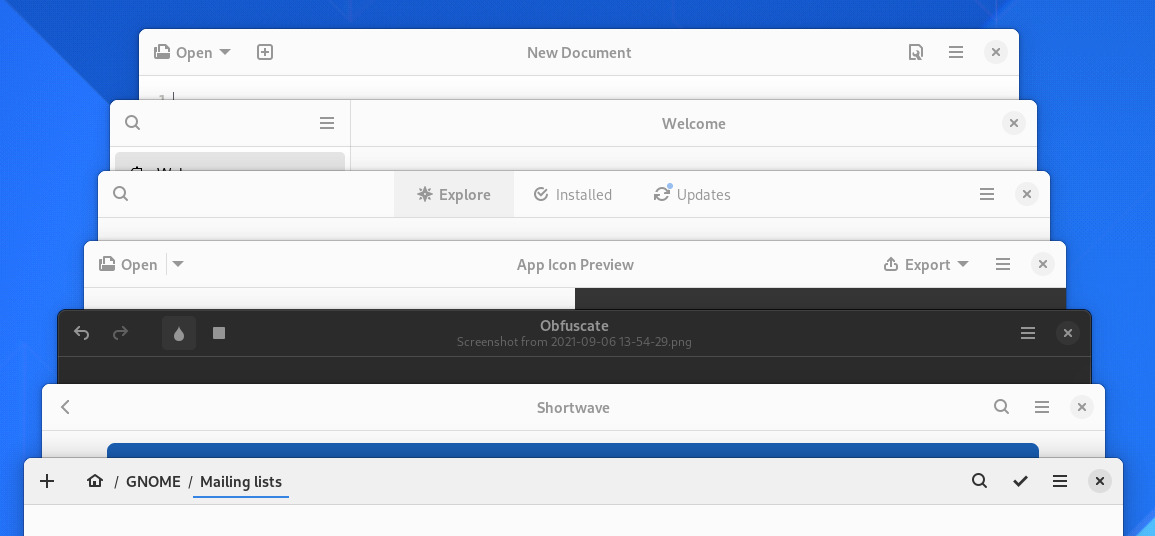
Probably the most noticeable change is the reworked stylesheet.

For the past 7 years, the Adwaita style has been a part of GTK. Now it’s a part of Libadwaita instead, while the GTK style has been renamed to Default.

Since we have this opportunity, the stylesheet has been completely redesigned with several goals in mind:

Modernizing the style

GNOME designers have long wanted to do this, and the GTK 4 Default style contains a few changes in that direction compared to the GTK 3 version of Adwaita, and GNOME Shell has been using a similar style as well. Libadwaita takes it much further. You can read more about it Allan Day’s blog post.

The changes are not fully compatible with GTK Default and may require changes on the application side when porting. I’ve also blogged in detail about the biggest breaking change: the updated header bar style.

Runtime recoloring

Ever since Adwaita started using SCSS, it couldn’t really be recolored at all without recompiling it. This created big problems for applications that wanted to do that.

For example, GNOME Web makes its header bar blue in incognito mode. This may sound simple, but involves copy-pasting large chunks of Adwaita into the app itself and making many small changes everywhere to adjust it, as well as using SCSS for it because the original style is SCSS. More recently, GNOME Console and Apostrophe started doing the same thing – copy-pasted from Web, as a matter of fact. This approach means the style is messy and extremely hard to keep up to date with Adwaita changes – I have updated this style for the 3.32 style refresh and never want to do this again.

Another approach applications like Contrast are using (were using with GTK 3, anyway), is copying the whole stylesheet from GTK, and using libsass to recompile it in runtime. This worked – it’s much more maintainable than the first approach, but fell apart when libsass got deprecated.

Meanwhile, the elementary OS stylesheet has been doing recoloring just fine with nothing but @define-color – and so Libadwaita does exactly that, it exposes all of the colors it uses (31 as of the moment of writing) as named colors. The new colors are also documented and will be treated as a proper API.

It also drops all of the formerly used PNG assets, so the colors can affect the elements that used them.

It also reworks the high contrast variant to use the same colors when possible to make sure that changing color for the regular style also works with high contrast.

Another thing the new stylesheet does is simplifying how it handles colors in general. The new simplified style comes in very handy here.

For example, many parts of the UI are now derived from the text color and change with it automatically, and widgets that don’t absolutely need to define their own text color don’t do that anymore, so it can propagate. Where possible, transparency is used instead of mixing or hardcoding colors.

All in all it means that simple custom styles like this one:

/* Solarized popovers */
popover > arrow,
popover > contents {
  background-color: #fdf6e3;
  color: #586e75;
}

actually work correctly and with no glitches, in both light and dark variants, as well as high contrast style. Try doing that with GTK 4 Default and compare the results:
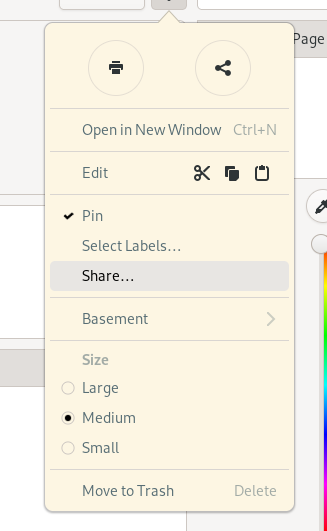
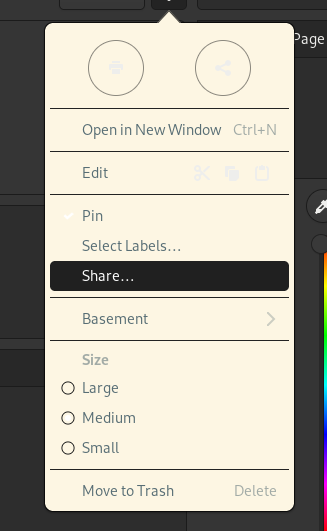
Dark Variant Contrast
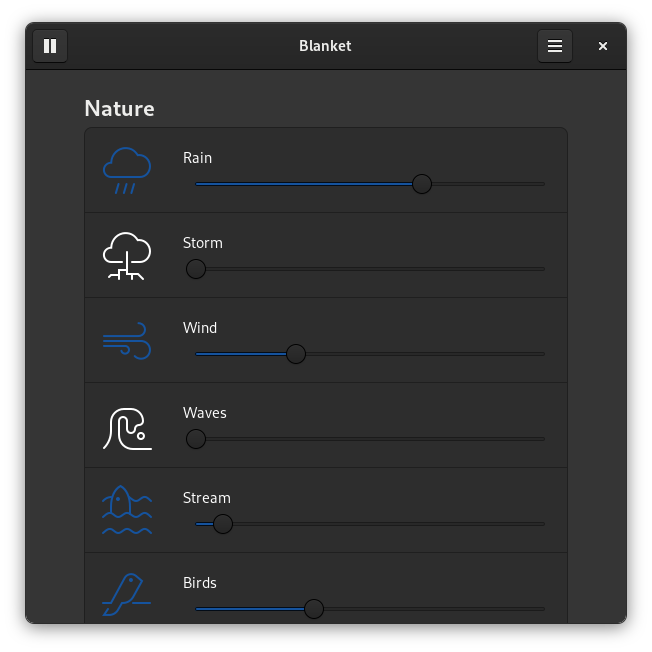
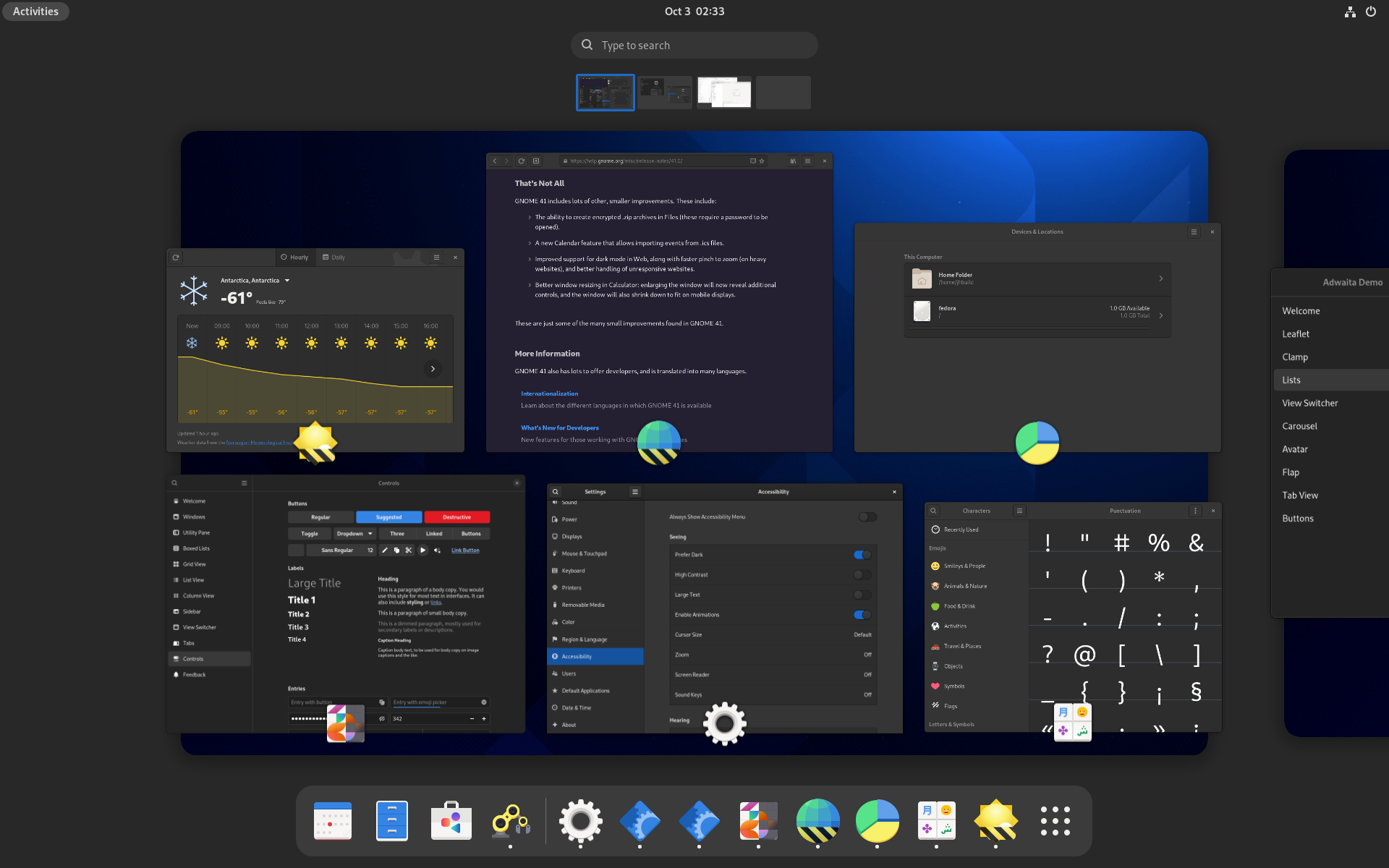
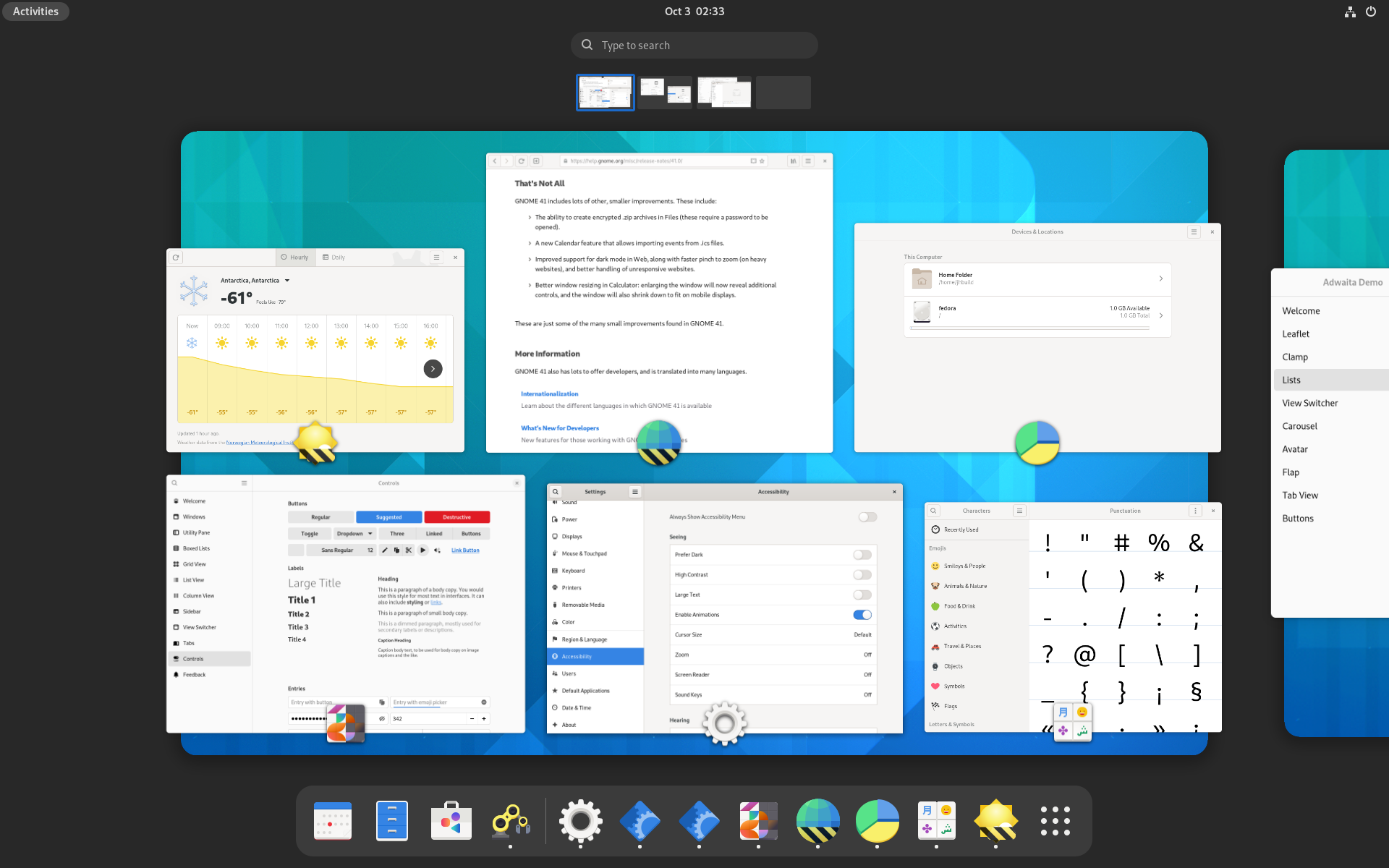
The dark variant of Adwaita has historically been intended to be used as a lights-out, low distraction appearance for media apps – video players, image viewers, games – and not as a general purpose dark style. As such, it has pretty low contrast and can be hard to see at times.

A primary example is the accent color – historically, Adwaita has never really had a proper accent color as a named color – and many applications have been using @theme_selected_bg_color – a background color used for selected text and list items – as an accent color for text and icons. Not only does it not have a good enough contrast to be used as text color, the dark variant dims it even further, to make this background color less distracting – so while it’s not too bad in the light variant, it falls apart with dark.

Libadwaita fixes that – it makes the accent brighter (made possible by not using it in contexts where it can be distracting), and introduces a second color to be used for cases like this. This second color does vary between the light and dark variants, and this allows it to be much brighter in dark variant, and darker in light variant, so it’s suitable for text.
It also changes many other things. The window background is now darker, while elements like buttons and boxed lists are lighter, GtkSwitch and GtkScale sliders are light, etc.

Style Classes
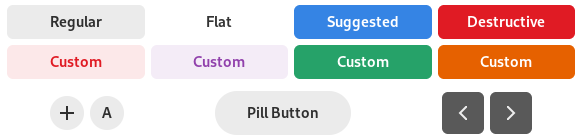
Button styles: regular (no style), flat, suggested action, destructive action, a few custom colored buttons, circular, pill, osd
Various button styles

The updated stylesheet includes many new style classes for app developers to use, in a lot of cases codifying existing patterns that applications have been using via custom styles, but also adding new things.

Some highlights:

  • .pill makes a button large and rounded – in other words, makes it a pill button
  • .flat can now be used with GtkHeaderBar
  • .accent colors a label into the accent color (using the correct color as per the above section)
  • .numeric makes a label use tabular figures
  • .card makes a widget have the same background and shadow as a boxed list.

And speaking of boxed lists, the old .content style class from Libhandy has finally been renamed to .boxed-list, matching the HIG name.

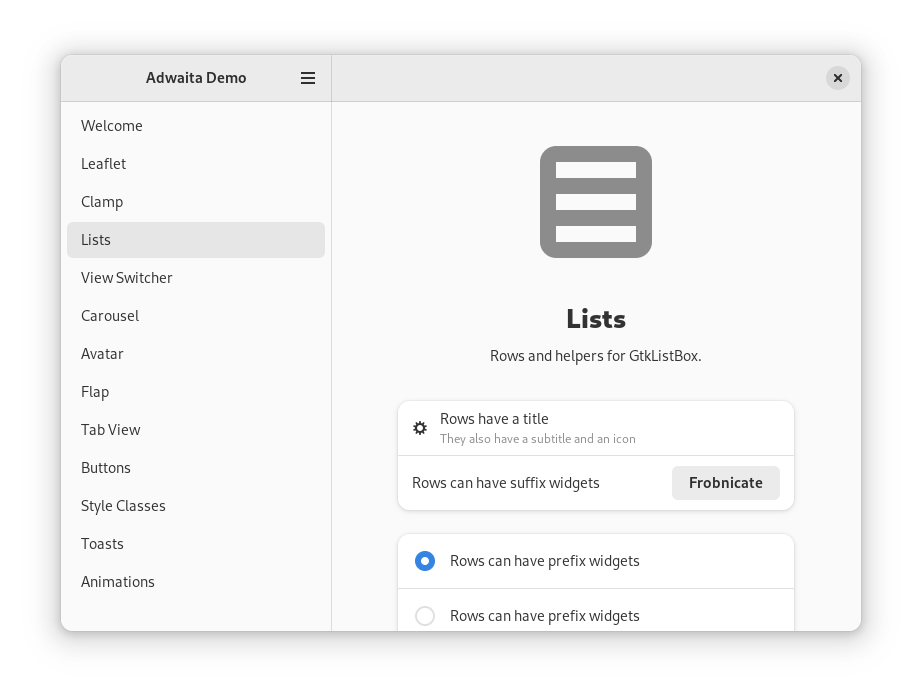
The available style classes (both existing and new) are now documented, and Libadwaita demo now includes a sample of each of them.

Refactoring and cleanups

Adwaita has historically been a big SCSS file containing most styles, another file containing complex mixins for drawing buttons, entries and other widgets, and a few more files for colors.

Libadwaita splits all of that into small manageable files. It removes the complicated mixins, because the new style is simple enough that they aren’t needed. It removes tons of unused and redundant styles, some of which were leftovers from early GTK 3 days, and so on. And, of course, the new style itself allows making styles significantly simpler.

The end result is a much more maintainable and less arcane stylesheet.

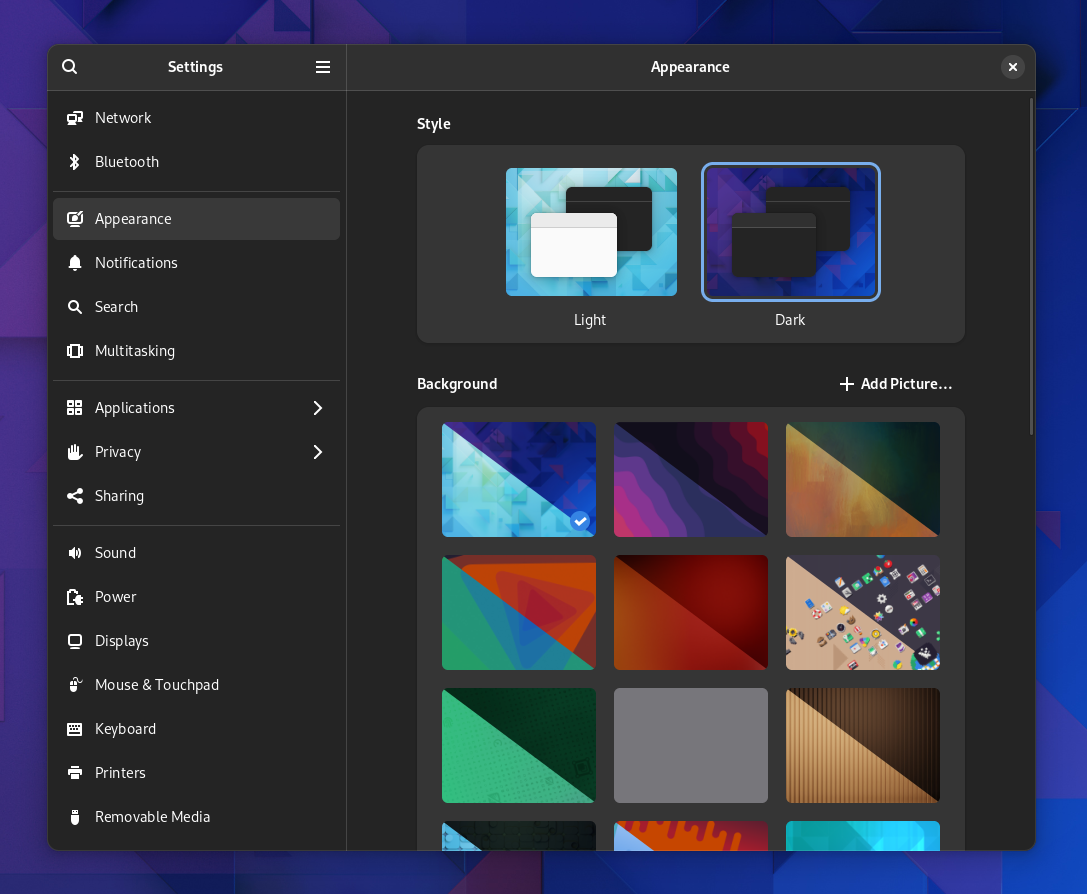
Dark Preference
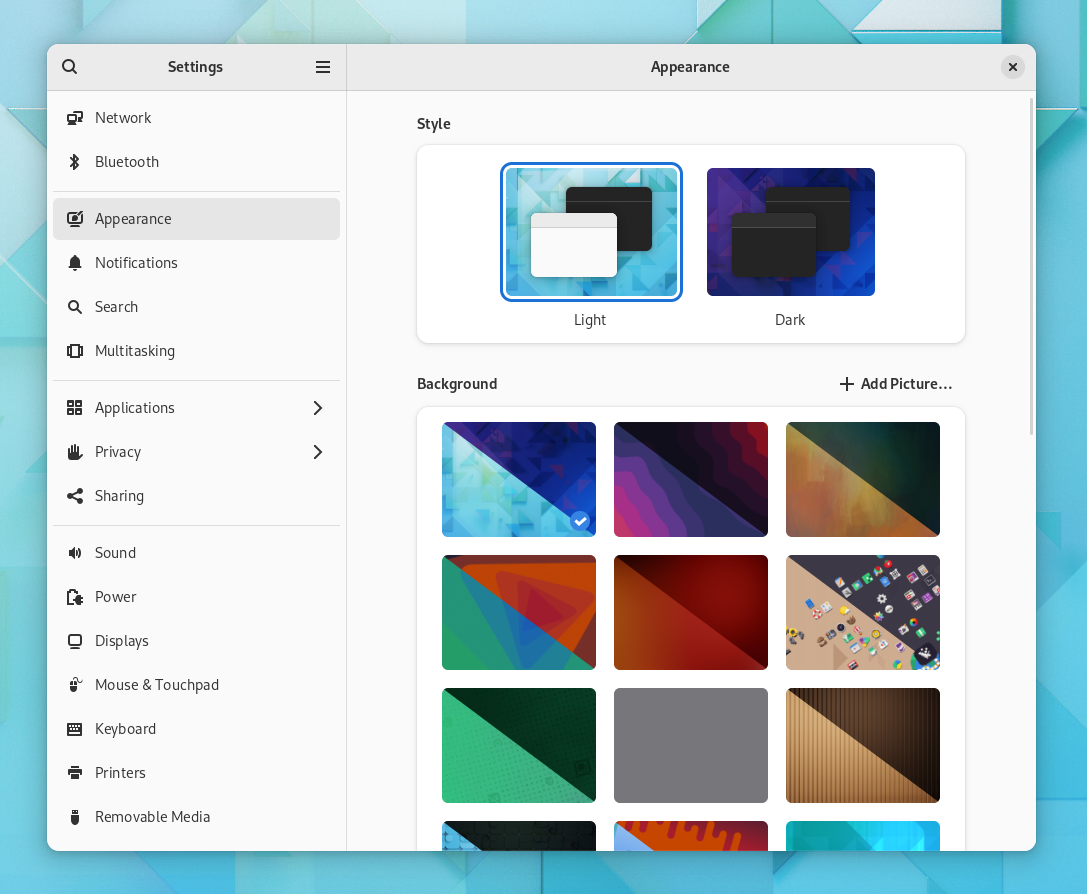
Settings, light
A work in progress dark preference in Settings. Dark version

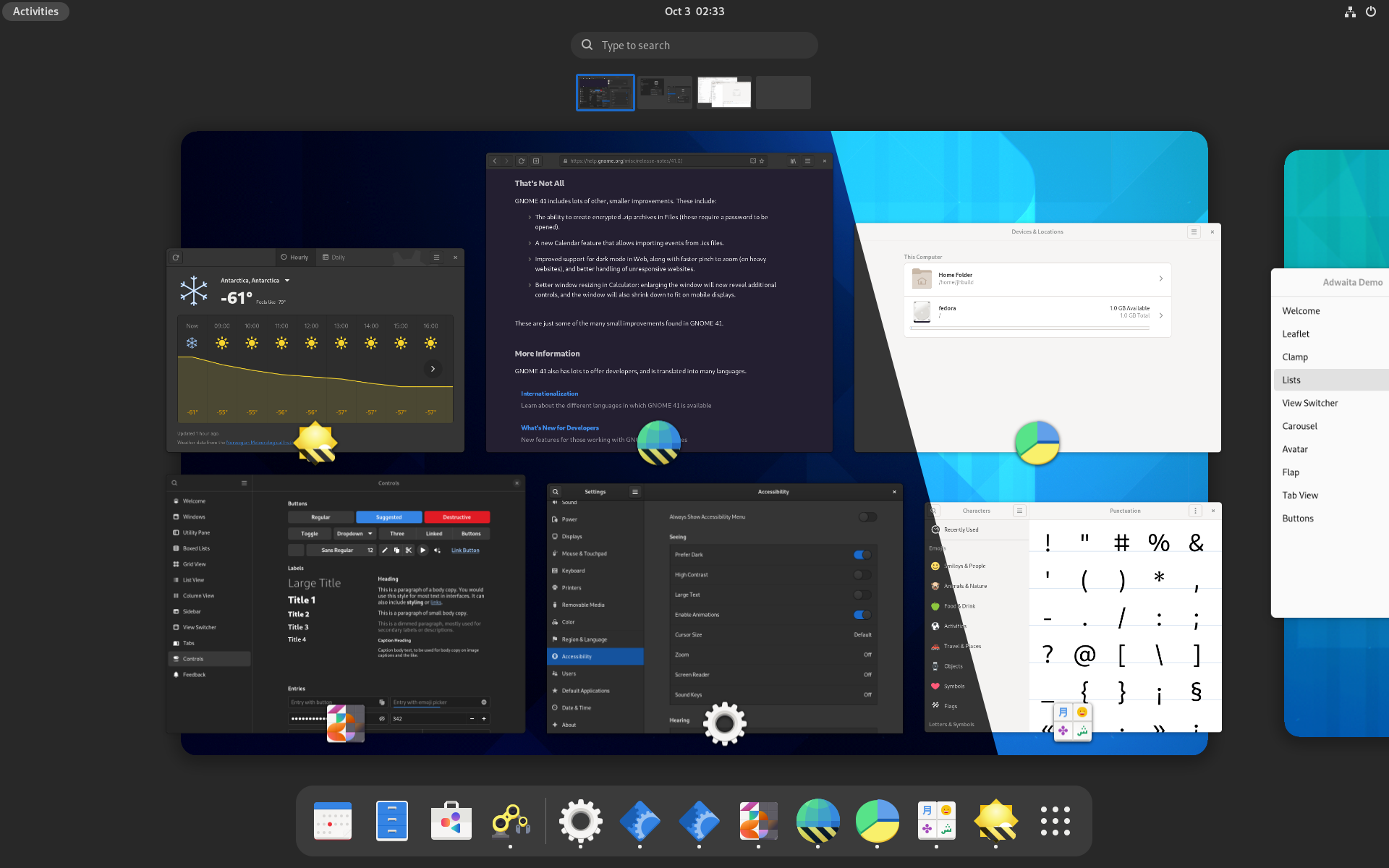
I’ve blogged about this in much more detail a few months ago, but in short, Libadwaita includes API to support the new cross-desktop dark style preference, as well as streamline the high contrast mode handling.

This has also been backported to Libhandy and will be available in the next release.

While the Libhandy version is strictly opt-in, Libadwaita flips the switch and follows the preference by default, unless the application opts out. This means that any new applications will support the preference by default – and that supporting it is an expected step when porting an application from GTK3 and Libhandy. The documentation now also includes a guide on how to handle application styles.

Many third party applications have already adopted it by now, and there has been good progress on supporting it in the core GNOME applications – though at the moment it’s unlikely that all of the core applications will support it in GNOME 42. If you maintain a core app, it’s a perfect time to start supporting it in order to avoid that ?️.
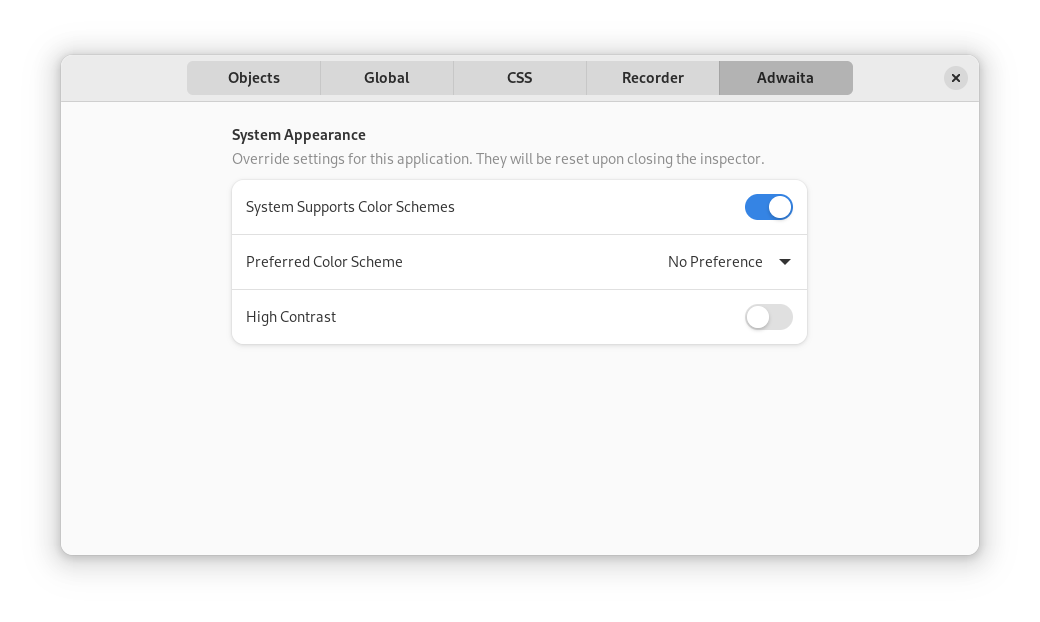
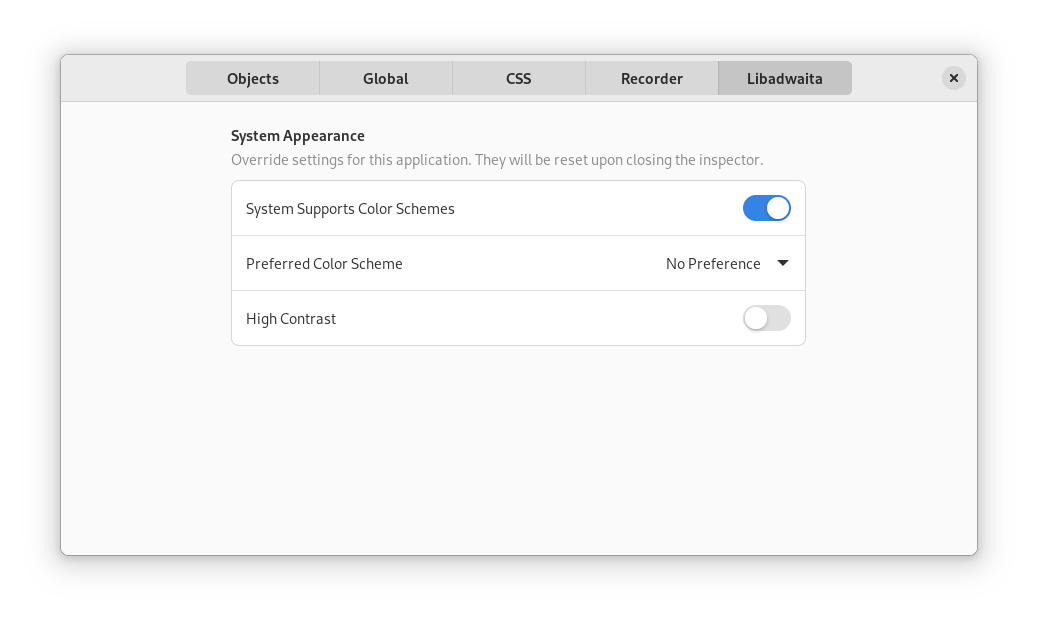
Libadwaita GtkInspector page

A new GtkInspector page is also available to help testing the style and high contrast preferences.

Documentation

Like GTK 4 itself, Libadwaita features new documentation using the awesome gi-docgen generator by Emmanuele Bassi.

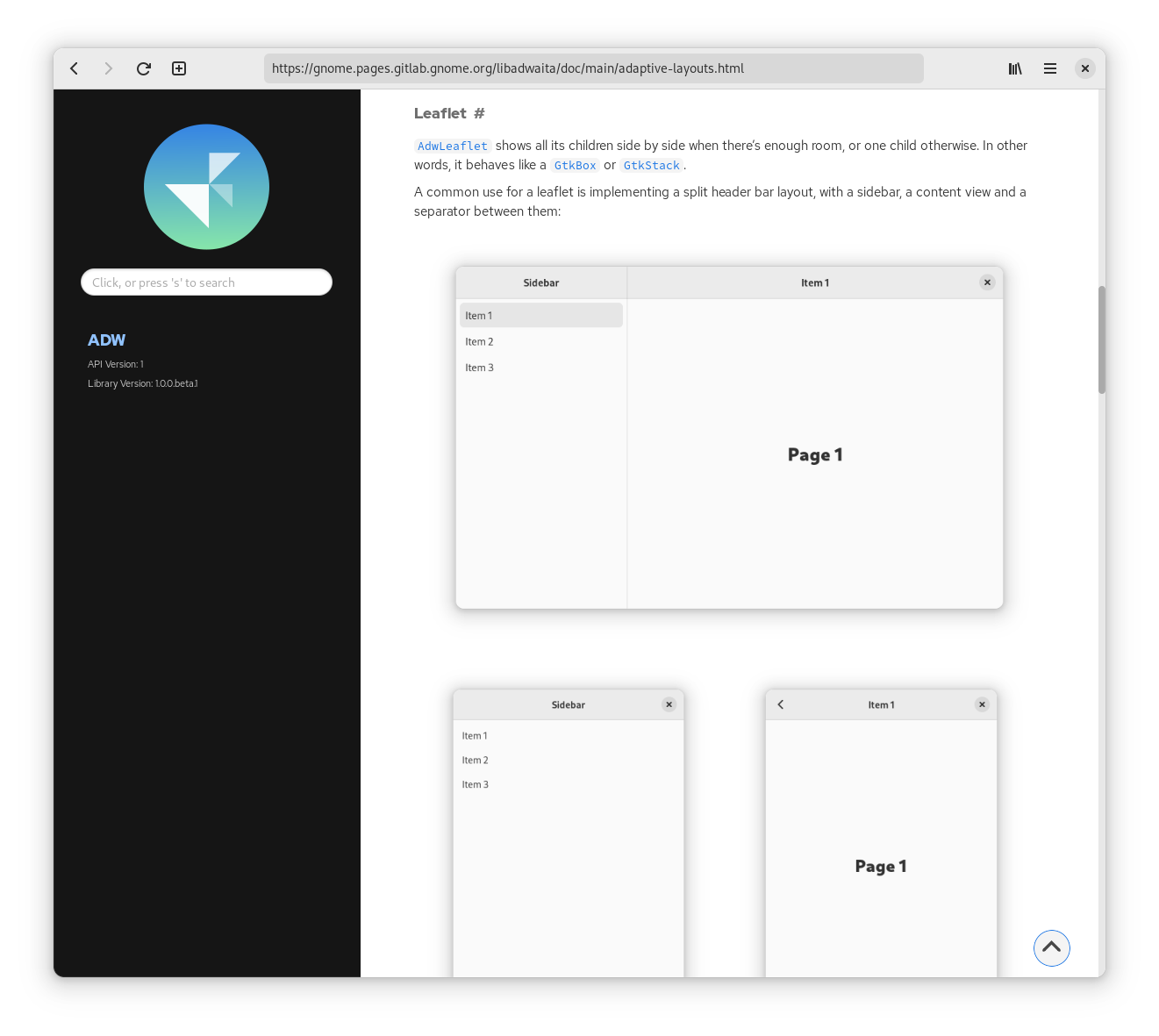
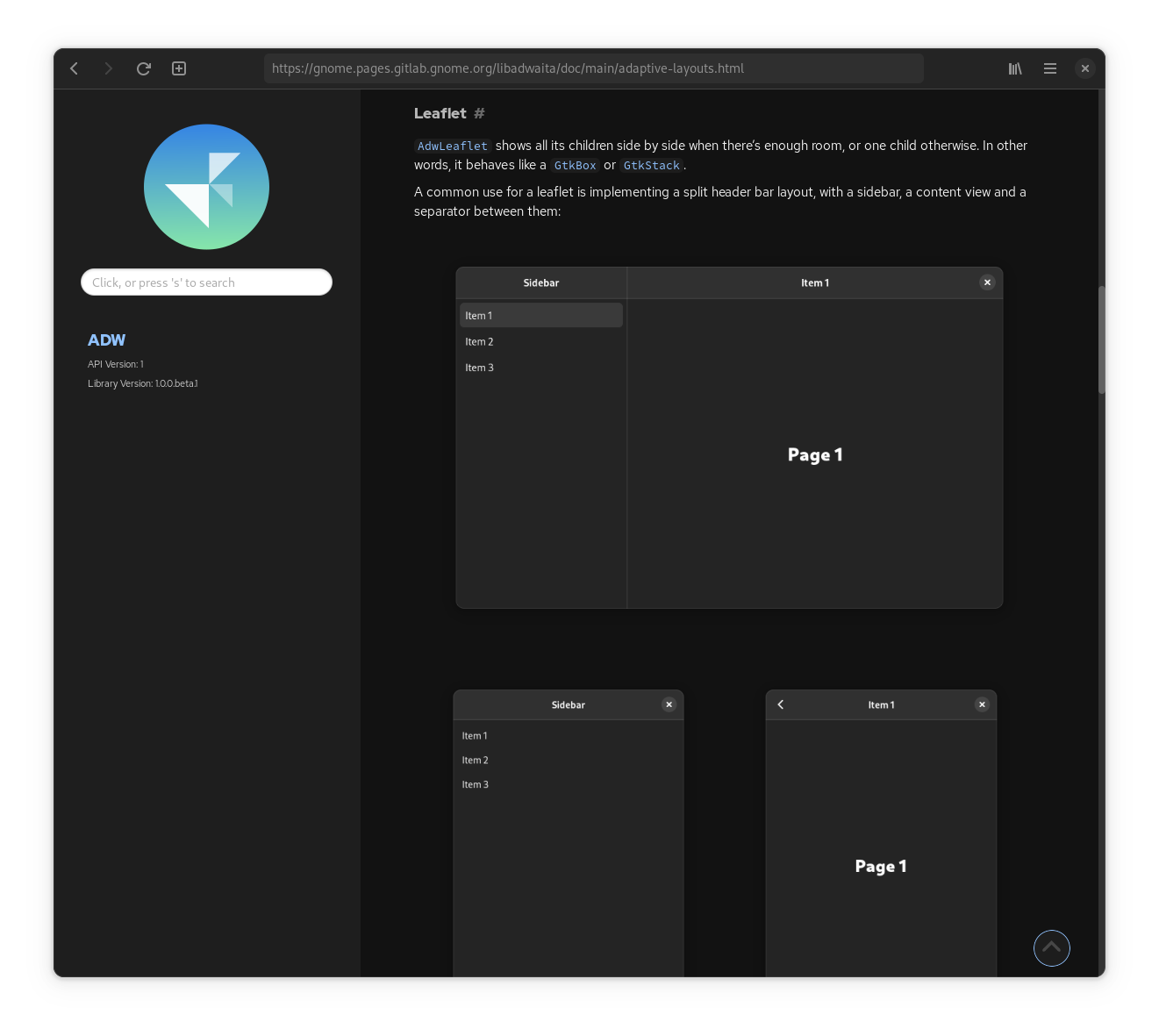
The docs themselves have been reworked and expanded, and feature new generated screenshots, which all come in light and dark versions to match the documentation pages:
Toasts

Toast saying "'Lorem Ipsum' Deleted", with an Undo button

While in-app notifications aren’t a new pattern by any means, we’ve never really had a ready to use widget. Sure, GdNotification exists, but it leaves a lot of decisions to applications, e.g how to deal with multiple notifications at once, or even what notifications should contain – essentially it only provides the notification style, a close button and a timeout.

A big feature that made GdNotification attractive was the ability to animate its visibility before GTK had a widget for that purpose. Now GtkRevealer exists (which our new widget ironically doesn’t use), and most apps currently use that to re-implement in-app notifications from scratch. This has lead to major inconsistencies between apps, and situations like this:
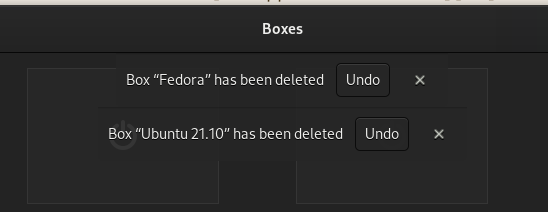
GNOME Boxes, two undo notifications, awkwardly stacked
GNOME Boxes, two undo notifications

To help fixing this, Maximiliano has implemented a new widget to replace them. Its API is very streamlined, and is modeled after notifications. The widget part is not a notification, but rather a notification area that toasts (which are just generic objects and not widgets) are added into. If multiple toasts are added in a quick succession, they are queued based on their priority.

A big difference from GNotification though is that toasts are mutable – and can be changed after they have been shown. This is useful when using toasts as undo bars, for example.

Animations
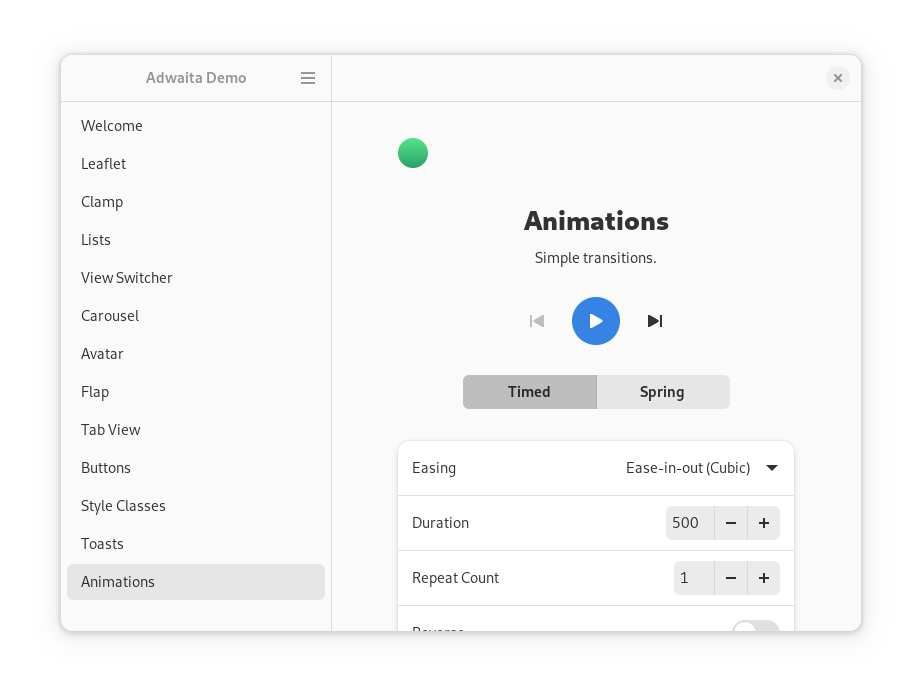
Libadwaita animation demo

Manuel Genovés has implemented an animation API as part of his GSoC project. Unfortunately not everything that was planned has been implemented, but we have basic timed animations and spring animations.

Timed animations provide simple transitions from one value to another one in a given time and with a given curve. They can repeat, reverse their direction, and alternate with each iteration.

Spring animations don’t have a fixed duration, and instead use physical properties to describe their curve: damping ratio (or optionally just damping), mass, stiffness, an initial velocity and an epsilon to determine when to stop it. The fact they have a variable initial velocity makes them perfect to animate deceleration after performing a gesture:

AdwLeaflet, AdwFlap and AdwCarousel all use spring animations now, and AdwSwipeTracker provides the final velocity after a swipe is finished, instead of pre-calculated duration.

Unfortunately, due to time constraints, none of the above widgets support overshoot when animating. Since they use a critically damped spring by default (meaning it takes the shortest possible time to reach the end and doesn’t overshoot unless the velocity is very high), it’s not really visible unless you swipe really hard, and it can be fixed after the initial release without any API changes.

Unread Badges

An example of an unread badge

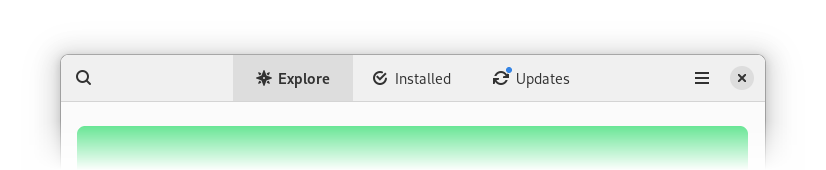
AdwViewSwitcher and related widgets now can display unread badges and not just needs-attention dots. This means they don’t use GtkStack anymore, but a new widget called AdwViewStack. For the most part, it’s a drop-in replacement, although it does trim down the API not necessary for this use case.

Thanks to Frederick Schenk for implementing this!

Application

Naiara has implemented AdwApplication – a GtkApplication subclass that automatically initializes Libadwaita when used. It also automatically loads styles from GResource relative to the application base path. For example, if your application has org.example.App application ID, it will automatically load /org/example/App/style.css. It also loads style-dark.css, style-hc.css, and style-hc-dark.css, allowing to add styles for dark or high contrast styles only.

Helper Widgets

Libadwaita provides a few widgets to simplify common tasks:

  • GtkHeaderBar in GTK4 does not provide a direct way to set a title and a subtitle, and just shows the window title by default. If you want to have a subtitle or to simply display a title that’s different from the window title – for example, for split header bars – the recommended way to do that is to construct two labels manually. That can be tedious and easy to get wrong. AdwWindowTitle aims to help with that. It can be used as follows:

    <object class="GtkHeaderBar">
      <property name="title-widget">
        <object class="AdwWindowTitle">
          <property name="title">Title</property>
          <property name="subtitle">Subtitle</property>
        </object>
      </property>
    </object>>
    
  • AdwBin is a widget that uses GtkBinLayout, has one child, provides API to manage it, implements GtkBuildable accordingly, implements GtkWidget.compute_expand(), and unparents the child in GObject.dispose(). Applications can subclass it instead of GtkWidget without worrying about those things. It can also be used directly without subclassing it.
  • AdwSplitButton provides an easy way to create a, well, split button that will use the correct appearance in a header bar or a toolbar.
  • AdwButtonContent can be used to create a button with an icon and a label without needing to manually set up the button mnemonic:

    <object class="GtkButton">
      <property name="child">
        <object class="AdwButtonContent">
          <property name="label">_Open</property>
          <property name="icon-name">document-open-symbolic</property>
          <property name="use-underline">True</property>
        </object>
      </property>
    </object>
    

API Cleanups

Large parts of the API have been streamlined. Check out the migration guide for more details.

Some highlights:

  • AdwHeaderBar provides separate properties for controlling window buttons at the 2 ends of the header bar, instead of one controlling both sides. This can be used to implement split header bar layouts and removes the need for HdyHeaderGroup.
  • Ever since HdyWindow we’ve had an easy way to support leaflet swipes spanning both the window and the titlebar without HdyHeaderGroup. All of the features HdyWindow and HdyWindowHandle provided have been added into GTK itself, and have been available since 4.0. In acknowledgement of that, Libadwaita doesn’t include a HdySwipeGroup equivalent.

    It still includes AdwWindow and AdwApplicationWindow as helpers, but it’s very easy to achieve the same result with a GtkWindow.

    <object class="GtkWindow">
      <property name="titlebar">
        <object class="GtkBox">
          <property name="visible">False</property>
        </object>
      </property>
      <property name="child">
        <!-- ... -->
      </property>
    </object>
    
  • AdwComboRow has been completely overhauled and is now basically a GtkDropDown clone. This means it uses the same list item factories, allows setting the models from UI files, etc. One thing it doesn’t provide is binding enums – to replace that, Libadwaita includes AdwEnumListModel.
  • AdwAvatar removes the old complicated image loading API and instead just allows setting a GdkPaintable as a custom image.
  • AdwLeaflet now supports the back/forward mouse buttons and keyboard keys, as well as Alt+arrow shortcuts, in addition to swipe gestures, and the properties controlling that have been renamed to reflect the addition.

What hasn’t made it

About Window
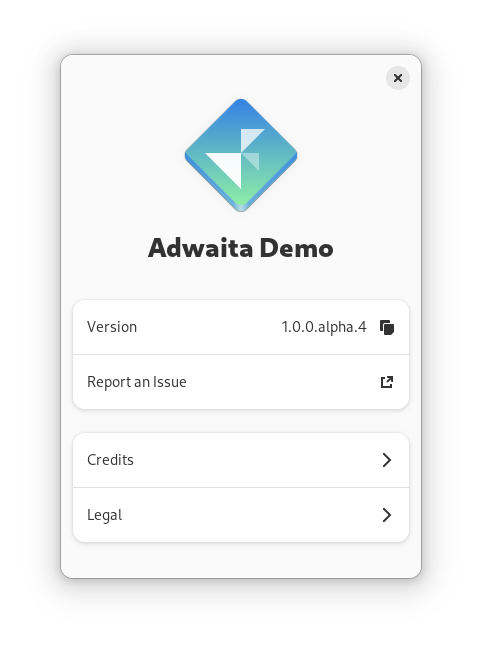
Work-in-progress about window

Even though it was featured in Allan Day’s blog post a few months ago, the new About window Adrien has been working on hasn’t made it into Libadwaita 1.0. There were still unresolved design and API questions, and we decided to wait until the next release to have time to polish it instead of rushing it.

Color API

While overriding colors via @define-color is far simpler than it was before (essentially, copying the entire style of the widgets you want to change, with different colors), it’s still not as easy as it could be.

For example, if an application wants to override its accent color, it needs to override 3 colors. One of them (@accent_color) exists pretty much only for contrast, and also differs between light and dark variants. In an ideal world, this color would be calculated automatically based on @accent_bg_color.

Chris has been working on a programmatic API to manage colors, and that should improve this situation a lot. As with the about window, though, it wasn’t ready in time for 1.0.

Touchpad Swipes

A known regression compared to Libhandy is that swipes in widgets such as AdwLeaflet only work on touchscreen, but not touchpad, if the pointer is above a scrolling view. This is something I really hoped to fix before 1.0, but it’s a surprisingly complex issue. It needs extensive GTK changes in order to be fixable, involving essentially replacing and deprecating the existing API for dealing with scrolling, and it’s not something that should be rushed.

Thanks To

  • Adrien Plazas, Christopher Davis, Frederick Schenk, Manuel Genovés, Maximiliano
  • GNOME design team
  • GTK developers
  • Frederik Feichtmeier, nana-4 and other members of the community

I also want to thank my employer, Purism, for letting me and others work on Libadwaita and GTK to make this happen.

Happy holidays and happy hacking!
Dark Style Preference

TL;DR GNOME will have a system-wide dark style preference in 42. Please update your apps to support it, see the instructions.


Dark style preference in GNOME
Dark style preference in GNOME 42. Separate dark and light screenshots

Lately, I’ve been working on having a proper dark style preference in GNOME. It’s a frequently requested feature, but also hard to get right. elementary UX architect Cassidy James Blaede did a good write-up about this, please read it if you haven’t yet (or watch his GUADEC talk if you prefer a video).

That was more than two years ago. Since then, elementary OS has started shipping an elementary-specific implementation designed in a way that it could be standardized later without many changes. While I could introduce another preference in GNOME, it was a good excuse to standardize it instead.

How does it work?

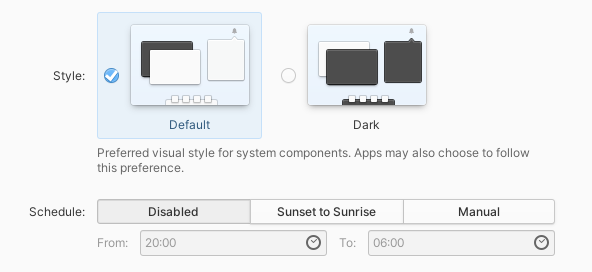
The idea is more or less exactly same as what elementary OS is doing: there’s a system preference, a tri-state with values: no-preference, prefer-dark, prefer-light. All 3 are just hints — apps are free to follow or not follow them as appropriate. The no-preference and prefer-dark values are exposed in settings, while the prefer-light value is reserved for future use.

Style: default; dark. Preferred visual style for system components. Apps may also choose to follow this preference. Schedule: Disabled; Sunset to Sunrise; Manual. From: 20:00, To: 06:00
Style preferences in elementary OS 6.0

The new preference is defined in the settings portal as the org.freedesktop.appearance.color-scheme key.

xdg-desktop-portal-gnome already implements this key (in the main branch, not in 41), and there are work-in-progress elementary and KDE implementations.

This way it’s not tied to any particular desktop or toolkit — any application can access the settings portal via DBus and read the preference — so applications like Firefox have a canonical location to access the preference from instead of trying to guess it from GTK theme name. Being in the portal also means it’s accessible to Flatpak apps without opening any sandbox holes.

API

Manually accessing the portal is a bit tedious, and so we wrap it into an easy to use API. Here’s where things differ more from the original elementary preference.

elementary exposes the preference in Granite (right now it only works with the elementary preference, there’s a pull request to make it use the portal), and leaves everything else to apps, so using the API looks like this:

var gtk_settings = Gtk.Settings.get_default ();
var granite_settings = Granite.Settings.get_default ();

gtk_settings.gtk_application_prefer_dark_theme = (
    granite_settings.prefers_color_scheme == DARK
);

granite_settings.notify["prefers-color-scheme"].connect (() => {
    gtk_settings.gtk_application_prefer_dark_theme = (
        granite_settings.prefers_color_scheme == DARK
    );
});

It works, but that’s quite verbose, and most apps do either that or prefers_color_scheme != LIGHT, and maybe vary other parts of the UI such as GtkSourceView color schemes.

For GNOME the API is in libadwaita and libhandy, and is vaguely inspired by CSS. The equivalent Vala code using libhandy looks like this:

Hdy.StyleManager.get_default ().color_scheme = PREFER_LIGHT;

The other color schemes are FORCE_LIGHT, PREFER_DARK and FORCE_DARK, as follows:

system \ app force-light prefer-light prefer-dark force-dark
prefer-light light light light dark
default light light dark dark
prefer-dark light dark dark dark

There’s also a read-only boolean property dark that corresponds to whether the UI currently appears dark.

There are also properties to check if the system has a system-wide color scheme preference, to allow apps to keep their dark style switches when running on GNOME 41, but drop them for 42; and, somewhat unrelated, a property to check if the system is currently using high contrast mode instead of it being a theme.

Libadwaita also provides a GtkInspector page to test all of this without changing the system preferences, though there’s no libhandy equivalent.

Libadwaita inspector page

The libadwaita API is already available in alpha 3, the libhandy one is not released yet.

Another difference is — the dark style preference is supported by default if you’re using libadwaita. While in libhandy the default is keeping the previous behavior — apps that were always light remain always light – libadwaita goes ahead and makes following the preference the default. Since it’s not API-stable yet, it’s an acceptable behavior break, same way as macOS and iOS support it automatically when building against new enough platform libraries, but don’t do it otherwise in order to keep existing apps working.

When porting from GTK3 and libhandy to GTK4 and libadwaita, apps are expected to start supporting this or otherwise opt out. When already using older versions of libadwaita, apps are expected to start supporting this when updating to alpha 3. When using libhandy, apps don’t get the support by default, but can explicitly opt in.

Transitions

Another thing libhandy and libadwaita do when switching appearance is they try very hard to block the CSS transitions that would usually occur. These transitions can take a long time and are inconsistent between widgets. For widgets with custom drawn content such as WebKitWebView this can’t work at all, so no point in trying.

An approach that yields much better results is doing the transition on the compositor side — then it works for any content automatically:

It’s still not perfect: GTK3 apps can take a pretty long time when doing this, and it will be noticeable: for example the GTK4 Patterns window on the video changes its appearance immediately while Settings and Web lag behind. The video was recorded in a VM though, and the transition should be smoother on bare metal.

When is it coming?

Most likely GNOME 42 – most of the plumbing has already landed, the main remaining things are:

  • The actual switch in Settings — I made a very simple UI for testing, shown in the video above; but it’s obviously not good enough to be used as is;
  • A switch in gnome-shell, similarly to how Android and iOS have one in Quick Settings or Control Center respectively;
  • The aforementioned compositor-side transition; I have a mostly working implementation shown in the video, but it still needs some work;
  • Day/night scheduling;
  • Synchronizing wallpaper with the preference when possible – for example, forcing the night version for the default timed wallpaper.
  • Supporting it from the applications.

How can you help?

The main area that needs work is the last item.

For core apps, we have an initiative, the goal is to port as many of them before 42 as possible.

The instructions from the initiative also apply to third party apps, although they can update at their own pace.

This applies to non-GTK apps as well — the instructions have an example of accessing the portal manually and following the preference from an SDL app.

Finally, if you maintain a GNOME-adjacent website, it would be nice if it followed the system preference. Some of the webpages do that, e.g. the GNOME 41 release notes or GTK documentation, but most don’t. Incl. this blog, yes.


So, let’s make it happen. For now, happy hacking.

I want to thank elementary folks for kick-starting all of this — it’s unlikely it would have happened otherwise.

Cleaning up header bars

Examples of app header bars after the redesign

You might have noticed that a lot of icons in GNOME 41 have been redrawn to be larger. They are still 16×16, but take up more of the space within the canvas. Compare:

Examples of symbolic icons in GNOME 40 and 41

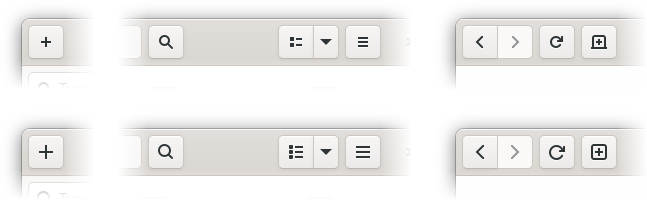
This was a preparation for a larger change that has just landed in the main branch in libadwaita: buttons in header bars and a few other widgets have no background now, matching this mockup.

For example, this is how the recent GTK4 branch of GNOME Software looks like now:

GNOME Software using GTK4 and libadwaita

Making the style feel lighter and reducing visual noise is a major goal for the style refresh we’re doing for libadwaita. While we’ve done lots of smaller changes and cleanups across the stylesheet to bring us closer to that goal, this is probably the highest-impact part of it due to how prominent header bars are in GNOME apps.

This is not a new idea either — pretty much everyone else is doing it, e.g. macOS, Windows, iOS, Android, elementary OS, KDE.

In fact, we’ve been doing this for a long time in view switchers. So this just extends it to the whole header bar.

However, if applied carelessly, it can also make certain layouts ambiguous. For example, a text-only button with no background would look exactly same as a window title. To prevent that, we only remove background from buttons that we can be confident won’t look confusing without it — for example, buttons containing a single icon.

While we avoid ambiguous situations, it also means that apps will need changes to have consistent buttons. In my opinion this is a better tradeoff: since the API is not stable yet, we can break behavior, and if an app hasn’t been updated, it will just get inconsistent look and not accessibility issues.

Details

The exact rules of what has background and what doesn’t are as follows:

The following buttons get no background:

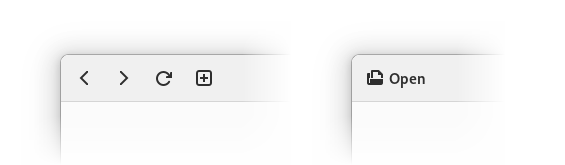
  • Buttons that contain icons (specifically the .image-button style class).
  • Buttons that contain an icon and a label, or rather, the .image-text-button style class.
  • Buttons with the .flat style class.
  • UPDATE: Any GtkMenuButtons with a visible arrow (the .arrow-button style class).
  • UPDATE: Any split buttons (more on that later).

Flat button examples: icon buttons; buttons with icons and text

The following buttons keep their default appearance:

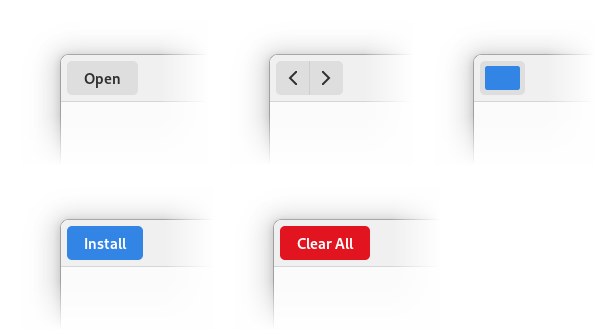
  • Text-only buttons.
  • Buttons with custom content.
  • Buttons with .suggested-action or .destructive-action style classes.
  • Buttons inside a widget with the .linked style class.
  • A new addition: buttons with the .raised style class, as inspired by the elementary OS stylesheet.

Raised button examples: text buttons, linked buttons, custom buttons, suggested and destructive buttons

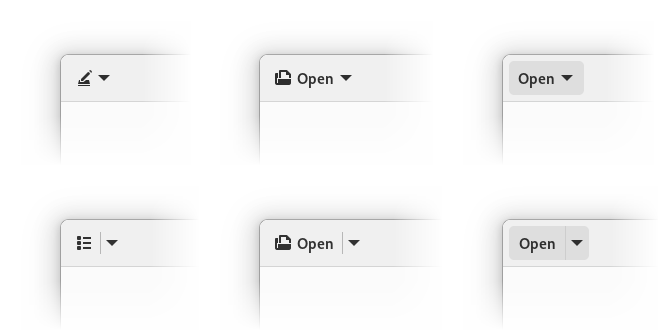
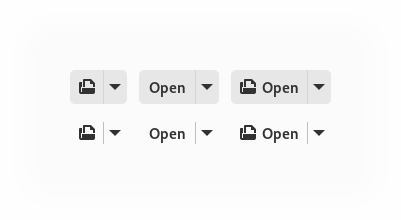
The appearance of GtkMenuButton and AdwSplitButton (more on that later) is decided as if they were regular buttons.

Icon-only, icon+text and text-only arrow and split buttons

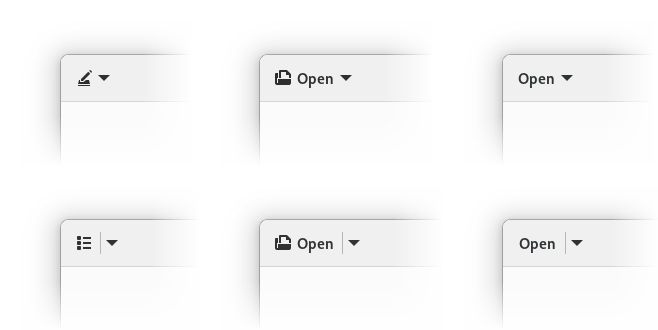
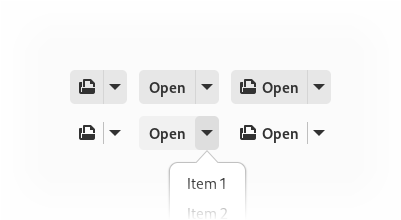
UPDATE: menu buttons with visible arrows and split buttons don’t have a background anymore regardless of their content.

Icon-only, icon+text and text-only arrow and split buttons, updated. Text buttons are flat too now

This may look a lot like the old GtkToolbar, and in a way it is. While GTK4 doesn’t have GtkToolbar, it has the .toolbar style class to replace it, and this style is now shared with header bars and also GtkActionBar.

Special cases

While the simple icon-only buttons are easy, a lot of applications contain more complex layouts. In that case we fall back to the default appearance and apps will need changes to opt into the new style for them. Let’s look at some of those patterns and how to handle them:

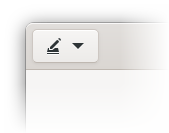
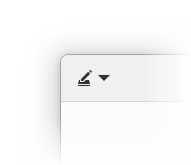
Menu buttons with icons and dropdown arrows

A menu button with an icon, GTK3

This case works as is if you use the standard widgets — namely, GtkMenuButton with an icon set via icon-name and always-show-arrow set to TRUE.

A menu button with an icon

The only reason this case is special is because always-show-arrow is relatively new, having only been added in GTK 4.4, so a lot of apps will have custom menu buttons, or, if porting from GTK3, GtkMenuButton containing a GtkBox with an icon and an arrow. Since we don’t remove backgrounds from buttons with custom content, both of them will have backgrounds.

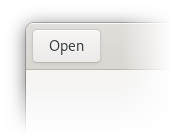
Text-only buttons

A button with text, GTK3

This is the most common case outside icon-only buttons. For these buttons the solution, rather counter-intuitively, is to add an icon. Since the icon has a label next to it, it doesn’t have to be very specific, so if an action is hard to describe with an icon, an only tangentially related icon is acceptable. If you still can’t find anything fitting — open an issue against the GNOME icon development kit.

With GTK widgetry, the only way to create such buttons is to pack a GtkBox inside, and create the icon and the label manually. Then you’ll also have to add the .image-button and .text-button style classes manually, and will need to set the mnemonic-widget property on the label so that mnemonics work.

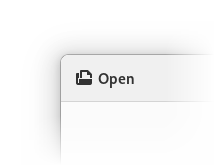
Since this is tedious and parts like connecting the mnemonic are easy to miss, libadwaita now provides AdwButtonContent widget to do exactly that. It’s intended to be used as a child widget of GtkButton, GtkMenuButton or AdwSplitButton (more on that below), as follows:

<object class="GtkButton">
  <property name="child">
    <object class="AdwButtonContent">
      <property name="icon-name">document-open-symbolic</property>
      <property name="label" translatable="yes">_Open</property>
      <property name="use-underline">True</property>
    </object>
  </property>
</object>

A button with an icon and text

If it’s a GtkMenuButton, it would also make sense to show a dropdown arrow, as follows:

<object class="GtkMenuButton">
  <property name="menu-model">some_menu</property>
  <property name="always-show-arrow">True</property>
  <property name="child">
    <object class="AdwButtonContent">
      <property name="icon-name">document-open-symbolic</property>
      <property name="label" translatable="yes">_Open</property>
      <property name="use-underline">True</property>
    </object>
  </property>
</object>

A menu button with an icon and text

UPDATE:Menu buttons with visible arrows don’t have background by default anymore, the step above is not necessary.

Note: the child property in GtkMenuButton is fairly new, and is not in a stable release as of the time of writing. It should land in GTK 4.6.

Notice we didn’t have to add any style class to the buttons or to connect mnemonics like we would have with GtkLabel. AdwButtonContent handles both automatically.

Split buttons

Split buttons in GTK3: with text and icon

This is a fairly rare case, but also a difficult one. Historically, these were implemented as 2 buttons in a .linked box. Without a background, it’s easy to make it look too similar to a regular menu button with a dropdown arrow, resulting in an ambiguous layout.

While existing split buttons will keep their background thanks to the .linked style class, we now have a way to make consistent split buttons – AdwSplitButton.

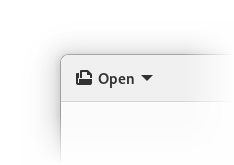
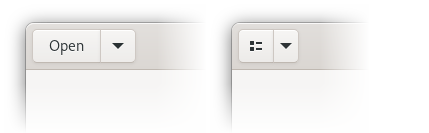
Examples of split buttons

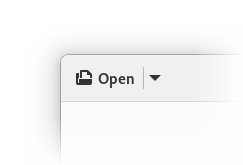
Whether they get a background or not depends on the content of their button part, while the dropdown part follows the suit – they will have background if it has only a label, will have no background if it has an icon, and will keep their default appearance outside header bars or toolbars. If it has no background, a separator is shown between them and they gain a shared background when hovered, pressed, or the dropdown is open:


They can be adapted the same way as regular buttons — via AdwButtonContent:

<object class="AdwSplitButton">
  <property name="menu-model">some_menu</property>
  <property name="child">
    <object class="AdwButtonContent">
      <property name="icon-name">document-open-symbolic</property>
      <property name="label" translatable="yes">_Open</property>
      <property name="use-underline">True</property>
    </object>
  </property>
</object>

A split button with an icon and text

UPDATE: split buttons with text or custom content don’t get background by default anymore, so the step above is not necessary.

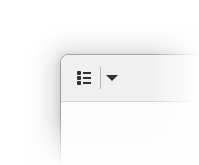
Meanwhile, buttons like the list/grid selector in Files are as simple as:

<object class="AdwSplitButton">
  <property name="menu-model">some_menu</property>
  <property name="icon-name">view-list-symbolic</property>
</object>

A split button with an icon

Otherwise, AdwSplitButton API is mostly a union of GtkButton and GtkMenuButton – the button part can have a label, an icon or a custom child, an action name and target, and a clicked signal if you prefer to use that. Meanwhile, the dropdown part has a menu model or a popover, and a direction that affects where the popover will be shown, as well as where the dropdown arrow will point.

Finally, in a lot of cases layouts that were using split buttons can be redesigned not to use them – for example, to use a simple menu button for opening files like in Text Editor instead of a split button in Apostrophe).

Linked buttons

Linked buttons, GTK3

With visible frames, linking buttons is a nice way to visually group them. For example, we commonly do that for back/forward buttons, undo/redo buttons, mode switching buttons. We also use multiple groups of linked buttons to separate them from each other.

For the most part linked buttons can, well, stop being linked. For example, back/forward buttons like this:

Linked buttons

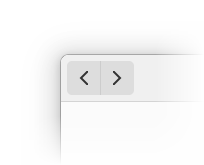
can become this:

Unlinked buttons

However, when multiple linked groups are present, just unlinking will remove the separation altogether:

Unlinked buttons without spacing, not grouped

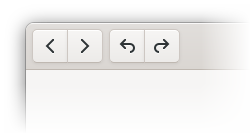
In that case, additional spacing can be used. It can be achieved with a GtkSeparator with a new style class .spacer:

<object class="GtkSeparator">
  <style>
    <class name="spacer"/>
  </style>
</object>

Unlinked buttons with spacing, grouped

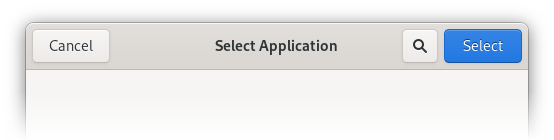
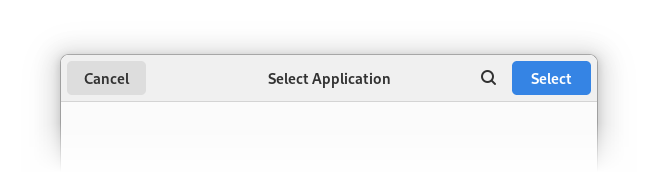
Action dialog buttons

A dialog, GTK3

This special case is less special than other special cases (or more special, if you prefer), in that apps don’t need to handle it, but I’ll mention it for the sake of completeness.

The two primary buttons in an action dialog or a similar context (for example, when changing display resolution in Settings, or the Cancel button in selection mode) should keep their current style — that is, they don’t have icons and keep their background. Meanwhile any extra buttons follow the new style.

In most situations this will already be the case so no changes are needed.

A dialog

Other

There will undoubtedly be cases not covered here. The .flat and .raised style classes can always be used to override the default appearance if need be.

Finally, not everything has to have no background. For example, the remote selector in Software is probably best kept as is until it’s redesigned to also make it adaptive.

And in rare cases, the existing layout just doesn’t work and may need a redesign.

Bundled icons

In addition to all of that, if you bundle symbolic icons, there’s a good chance there are updated larger versions in the icon library. It would be a good idea to update them to match the new system icons.

Examples

Let’s update a few apps. App Icon Preview and Obfuscate should show off most of the edge cases.

App Icon Preview

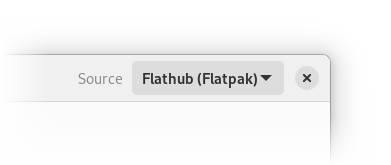
The version on Flathub is still using GTK3 as of the time of writing, but it’s GTK4 in main. So let’s start from there.

App Icon Preview, before libadwaita update

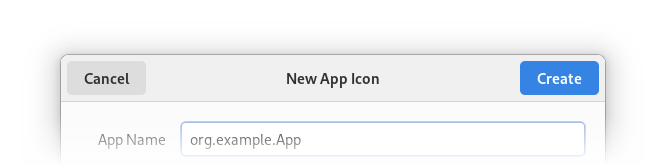
App Icon Preview, New App Icon dialog

App Icon Preview has 2 windows, each with its own header bar — the main window and the "New App Icon" dialog.

After the libadwaita update, the dialog hasn’t changed, meanwhile the main window looks like this:

App Icon Preview, no adjustments

It has a custom split button, as well as a text-only Export button when a file is open.

First, let’s replace the split button with an AdwSplitButton:

<object class="GtkBox">
  <child>
    <object class="GtkButton">
      <property name="label" translatable="yes">_Open</property>
      <property name="use_underline">True</property>
      <property name="tooltip_text" translatable="yes">Open an icon</property>
      <property name="action_name">win.open</property>
    </object>
  </child>
  <child>
    <object class="GtkMenuButton" id="recents_btn">
      <property name="tooltip_text" translatable="yes">Recent</property>
      <property name="icon_name">pan-down-symbolic</property>
    </object>
  </child>
  <style>
    <class name="linked"/>
  </style>
</object>

This will become:

<object class="AdwSplitButton" id="open_btn">
  <property name="label" translatable="yes">_Open</property>
  <property name="use_underline">True</property>
  <property name="tooltip_text" translatable="yes">Open an icon</property>
  <property name="action_name">win.open</property>
</object>

Since we’ve changed the class and the GtkBuilder id, we also need to update the code using it. Hence this:

#[template_child]
pub recents_btn: TemplateChild<gtk::MenuButton>,

becomes this:

#[template_child]
pub open_btn: TemplateChild<adw::SplitButton>,

and the other recents_btn occurences are replaced accordingly.

App Icon Preview, using AdwSplitButton

UPDATE: after the menu button and split button change, the Open and Export buttons don’t get background anymore, so only the previous step is necessary.

Now we need to actually remove the background. For that we’ll add an icon, and it’s going to be just document-open-symbolic.

So we’ll remove the label and use-underline and instead add an AdwButtonContent child with the same lines together with icon-name inside it:

<object class="AdwSplitButton" id="open_btn">
  <property name="tooltip_text" translatable="yes">Open an icon</property>
  <property name="action_name">win.open</property>
  <child>
    <object class="AdwButtonContent">
      <property name="icon_name">document-open-symbolic</property>
      <property name="label" translatable="yes">_Open</property>
      <property name="use_underline">True</property>
    </object>
  </child>
</object>

App Icon Preview with an icon on the open button

Now, let’s look at the Export button. It needs an icon as well, but adwaita-icon-theme doesn’t have anything fitting for it. So instead, let’s check out Icon Library (which doesn’t have a lot of edge cases itself).

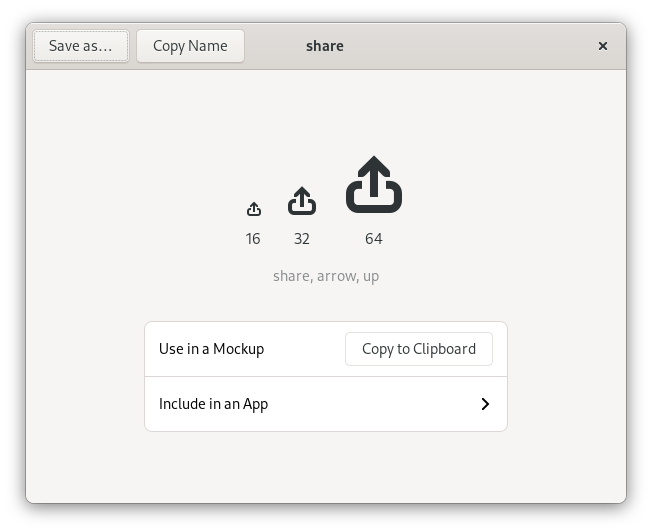
While it doesn’t have icons for export either, it has a share icon instead:

Icon Library showing the share icon

So that’s what we’ll use. We’ll need to bundle it in the app, and let’s rename it to export-symbolic while we’re here. Now we can do the same thing as for the Open button:

<object class="GtkMenuButton" id="export_btn">
  <property name="always_show_arrow">True</property>
  <child>
    <object class="AdwButtonContent">
      <property name="icon_name">export-symbolic</property>
      <property name="label" translatable="yes">_Export</property>
      <property name="use_underline">True</property>
    </object>
  </child>
</object>

App Icon Preview with an icon on the export button

So far so good. See the merge request for the complete changes.

Obfuscate

This app has only one header bar, but it can change its state depending on if there’s a file open:

Obfuscate, with no open file, before libadwaita update

Obfuscate, with an open file, before libadwaita update

After building with newer libadwaita, we see there’s quite a lot to update.

First, we need to add an icon to the Open button. It’s done exactly the same way as in App Icon Preview, so I won’t repeat it.

Obfuscate, with no open file, adapted

Instead, let’s look at the other buttons:

Obfuscate, with an open file, after libadwaita update

Here we have two groups of linked buttons — so .linked is used both to group related actions together, and to separate the 2 groups.

So, first we need to unlink those buttons. Since it’s just removing the 2 GtkBox widgets and instead putting the buttons directly into a header bar, I won’t go in details.

Obfuscate, with an open file, with unlinked buttons, no spacing

However, now we’ve lost the separation between the undo/redo group and the tools. So let’s add some spacing:

<object class="GtkSeparator">
  <style>
    <class name="spacer"/>
  </style>
</object>

And the end result is the following:

Obfuscate, with an open file, with unlinked buttons and spacing


This information is also present in the libadwaita migration guide, and will be in the stylesheet documentation once all changes are finalized.

For now, happy hacking!

UPDATE (on the same day as published): Menu buttons with visible arrows and split buttons don’t get background by default anymore. The steps and examples have been updated accordingly.

Reinventing tabs

GNOME Web 40

In GNOME 40, Epiphany will feature a new tab bar. This isn’t just a restyling of the old one, but a ground-up rewrite. But why was this needed?

Static vs dynamic

GNOME apps use tabs in a lot of different ways, but they can be roughly divided into two categories. I will refer to them as static and dynamic tabs.

Static tabs

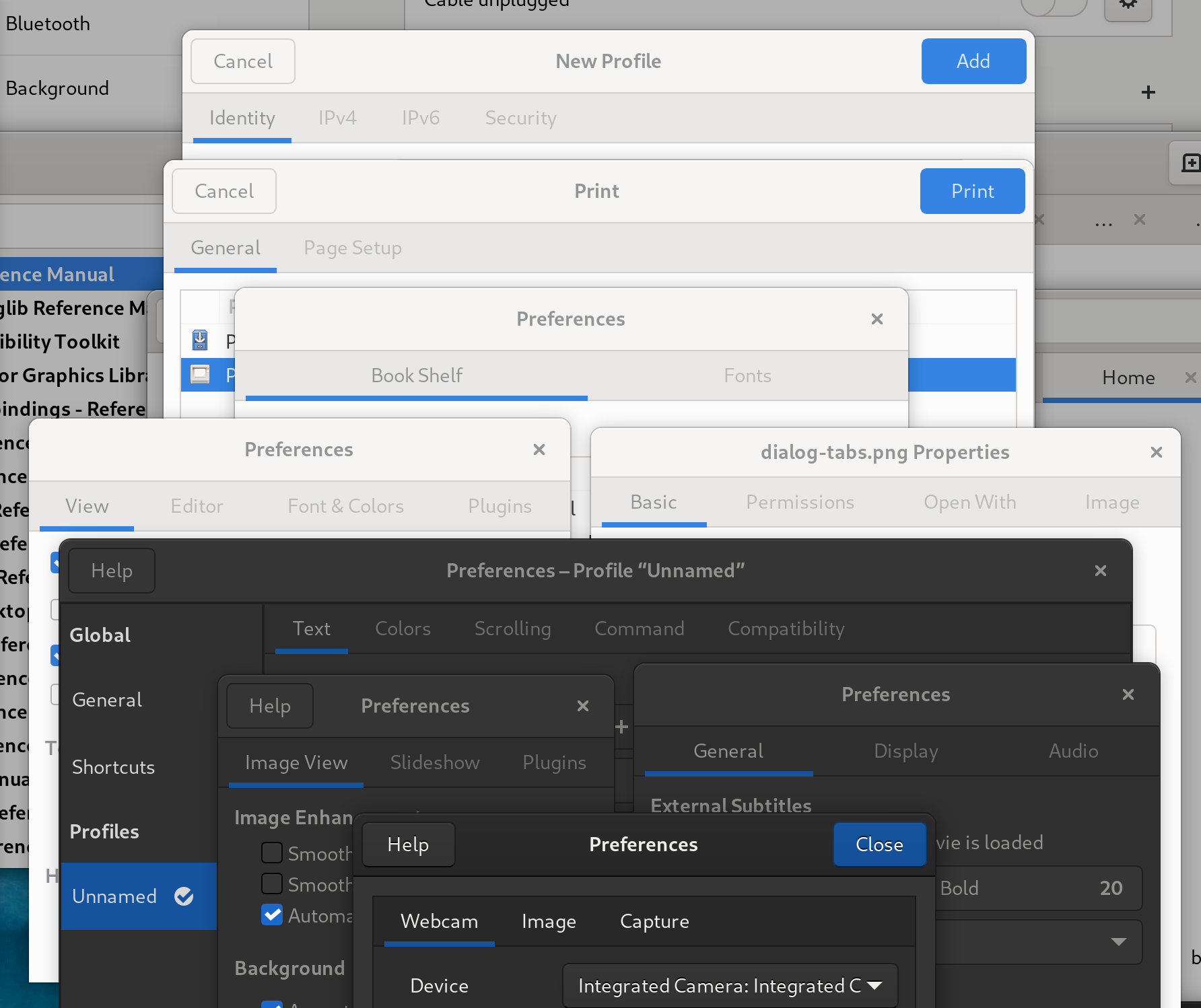
They are completely immutable, each tab contains a title label and they usually don’t scroll. They are usually used in dialogs, but, for example, can also be used in a ribbon toolbar. Modern GNOME apps often use GtkStackSwitcher or HdyViewSwitcher instead, but tabs are still quite common.

Static tabs in various dialogs

Dynamic tabs

These tabs are used in multi-window apps such as web browsers, text editors, file managers or terminal emulators. They are opened and closed by the user, they can be reordered, dragged between windows or into new windows by dropping them on desktop. They need scrolling. They always have a title and a close button, sometimes an icon and/or a spinner. They hide when only one tab is present. They can be closed by middle clicking, they have context menus. Sometimes they can be pinned or have an extra icon, for example an audio playback indicator. Sometimes they need confirmation on closing.

Top to bottom: gedit, GNOME Terminal, Nautilus, GNOME Text Editor, Devhelp, Sysprof, Epiphany

While static tabs are pretty uniform across GNOME, dynamic tabs in every application look and feel very different. For example:

  • GNOME Text Editor has close buttons on selected and/or hovered tabs only, other apps have them on all tabs.
  • Some apps allow tabs to shrink to a very small size before scrolling, others start scrolling earlier.
  • Devhelp doesn’t scroll at all and just overflows tabs off the window.
  • Epiphany and GNOME Terminal have popovers showing all tabs; GNOME Terminal is using GtkMenu while Epiphany is using a GtkPopover.
  • While not visible on the screenshot, only Epiphany and gedit support dragging tabs between windows.
  • It’s possible to drag files onto tabs in Epiphany and Nautilus. In Nautilus, hovering over a tab while dragging a file will automatically switch to that tab, but not in Epiphany.
  • In gedit and GNOME Terminal it’s not possible to focus the active tab by clicking it again.
  • In GNOME Text Editor and Epiphany, moving to another tab when focusing the active tab will select the page instead.

But why such a difference?

GtkNotebook

All of those apps are using a widget called GtkNotebook. It implements a generic tabbed view and shows tabs on one of the sides, and each tab has a label that can be replaced with an arbitrary widget.

By default, GtkNotebook doesn’t scroll, has a simple title label on each tab, doesn’t expand tabs, doesn’t allow any kind of drag-n-drop.

In other words, it’s geared squarely for static tabs. It doesn’t mean it’s impossible to use it for dynamic tabs, but you will have to manually implement:

  • A tab layout with a close button, a title, an icon, and maybe a mute indicator, and set a reasonable minimum width for scrolling.
  • Shortcuts such as Ctrl+Tab or Alt+[1 – 9] for switching between tabs.
  • Context menu handling, including the keyboard shortcut and a long press gesture for touchscreens.
  • Middle click closing.
  • Tab opening/closing logic — for example, which tab to select when the active tab is closed.
  • If you need to drop data on tabs, a handler for that. You also need to be careful to not accidentally break the hover timeout in process, like Epiphany does in 3.38.x.
  • Hiding when only one tab is present.

Of course, every app ends up implementing these things slightly differently. And then on top of that there are issues that cannot be fully fixed from the app side, such as:

  • Tab scrolling is discrete. This looks confusing and introduces other issues:
    • Dynamic tabs can have a lot of tabs. Pressing arrows to scroll one tab at a time doesn’t really scale for this.
    • Related, it’s not possible to take a tab and reorder it over long distances, you’ll have to reorder it a few tabs forward, press the scroll buttons a few times, reorder it again etc.
    • When opening a new tab, it can end up offscreen with no indication whatsoever.
    • Minimum tab width changes depending on the window size.
  • There are no pinned tabs.
  • The UI in general isn’t very polished — for example, there’s no animation when opening or closing tabs.

Some of that can be papered over though:

  • Epiphany fakes pinned tabs via force reordering them at the beginning, using a compact layout, not expanding them and not allowing to close them, but they can still be scrolled away and the fact the tab width changes based on the window size affects these tabs especially badly:

    Pinned tabs in Epiphany 3.38

    Pinned tabs in Epiphany 3.38

  • It manually highlights arrows when a tab has been opened offscreen.
  • It provides a popover to quickly switch between tabs when they don’t fit on the screen. This doesn’t help with reordering though.
  • elementary’s DynamicNotebook implements a resize delay after closing a tab, but it’s not very reliable, for example it jumps when the scroll arrows disappear. It also can only work when tabs aren’t expanded like in GNOME apps.

Additionally, GtkNotebook contains both view and tabs, and they are inseparable, so it’s impossible to have tabs in fullscreen, autohiding with the header bar, or to put them in the header bar, away from the content.

Finally, it’s not adaptive and Epiphany currently has an in-tree implementation of a mobile tab switcher that every app that wants an adaptive tabbed UI would have to copy.

A rewrite

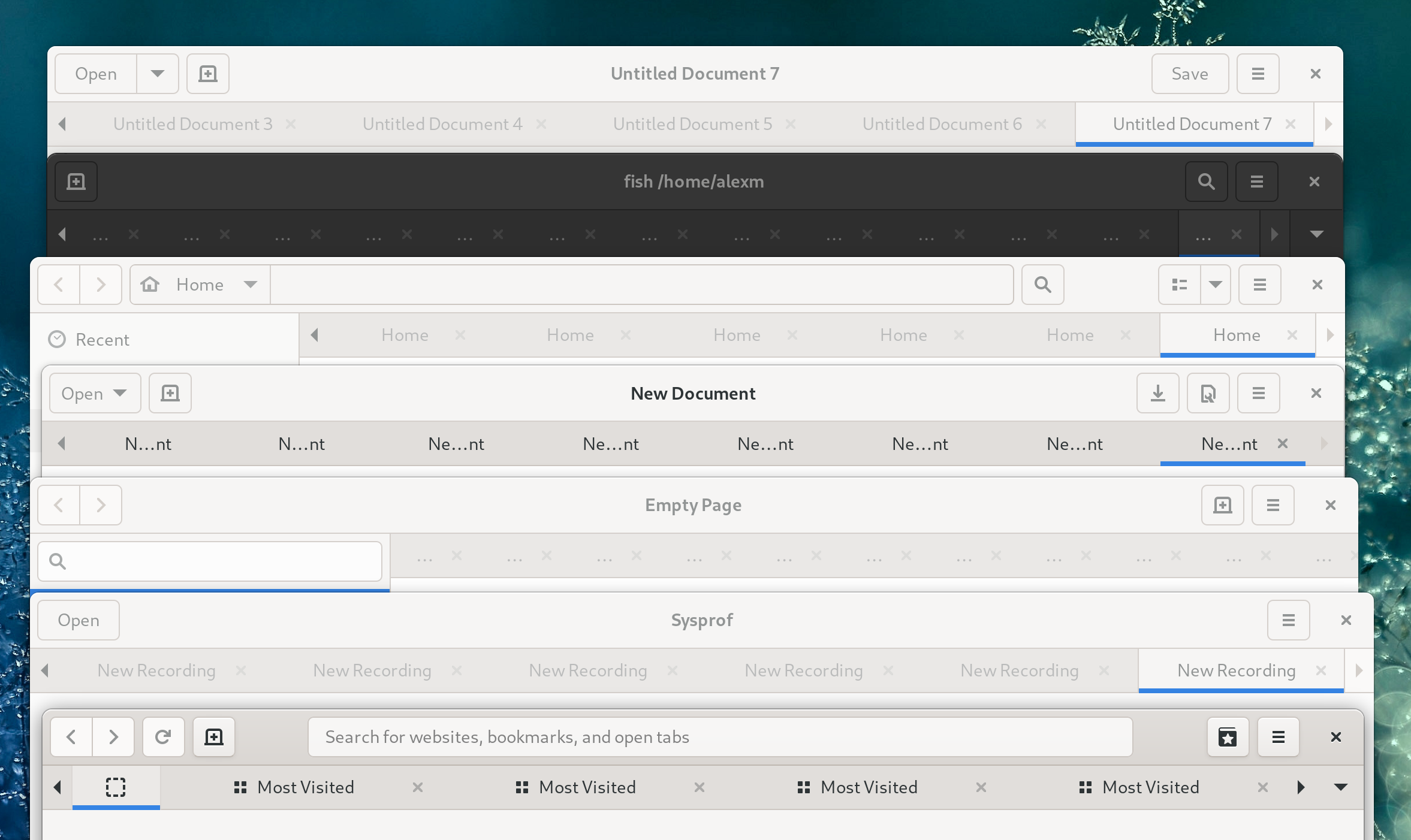
HdyTabBar demo in libhandy 1.2

So, with all of this, I believe the cleanest way forward is a completely new widget, implementing specifically dynamic tabs. While we’re there, we can also separate the tab view and tab bar into separate widgets just like GtkStack and GtkStackSwitcher are separate.

I started implementing it shortly before GUADEC 2020, and had mostly completed it by the end of September, when I joined Purism. In January me and Adrien finally took the time to finish, review and land it.

The result of this are two widgets called HdyTabView and HdyTabBar, available in the recently released libhandy 1.2.

HdyTabView contains a GtkStack and provides an API more suitable for tabs: for example, pages are strictly ordered, there’s API for tab reordering, but not transition or child names, etc. Additionally, because each page has a large amount of metadata, it uses GTK 4-like page objects (HdyTabPage) even in GTK 3, instead of child properties, which would be pretty annoying to use without property bindings etc.

Meanwhile, HdyTabBar is a tab bar that connects to a HdyTabView and shows its pages, implementing this design.

What it provides

  • Tabs have an icon, a title, a tooltip, a close button, a context menu, and they can show a loading spinner instead of the icon.
  • Pinned tabs. They are compact, placed at the beginning of the tab bar and don’t scroll along with the rest of the tabs; they also affect the behavior of shortcuts such as Ctrl+Home/End.
  • Unread indicators, including when the unread tab is scrolled offscreen.

  • Indicator icons: every page can have one indicator icon on its tab, optionally clickable. Epiphany currently uses it as an audio playback indicator/mute button. Indicators are located on the left side of the tab in order to not conflict with close buttons.

    Indicator icons in libhandy 1.2 demo

    When the tab is pinned, the indicator is displayed instead of the icon and not next to it like previously in Epiphany. To make sure the tab can be easily selected, it’s only clickable if the tab is already selected, so the first click selects the tab, the second click activates the indicator.

  • Autohide when only one tab is present.
  • When closing tabs with a pointer, they don’t fill the empty space immediately, instead they resize so that the next tab’s close button moves exactly where the last one was, allowing to close multiple tabs in a row without moving the pointer.
  • Automatic positioning for new tabs, though there is also API to insert tabs in arbitrary positions if needed.
  • Fully working drag-n-drop: tabs can be reordered, moved between windows, dropped on desktop to create a new window, tabs can accept arbitrary data being dropped. If a tab bar only has one tab, it will be automatically shown when a drag starts and hidden when it ends, so it’s still possible to drop another tab into it.
    Tabs can also be dropped on the tab view; in that case they are appended at the end of the tab bar.
  • Touchscreen support: drag the tab bar to scroll it, long press and drag to reorder a tab, longer press to open context menu.
  • Close confirmation API.
  • Tab opening, closing, reordering, drag-n-drop, showing and hiding of the tab bar are all animated.
  • Shortcuts:
    • Ctrl+Tab and Shift+Ctrl+Tab — switch between tabs, with wrapping.
    • Ctrl+PageUp/PageDown/Home/End — same, but without wrapping.
    • Ctrl+Shift+PageUp/PageDown/Home/End — tab reordering.
    • Alt+[1 – 9] — switching to one of the first 9 tabs.
  • The fact they are separate allows Epiphany to keep its tab bar in fullscreen in 40.

    Epiphany 40 in fullscreen mode

What it doesn’t provide

  • It doesn’t allow to set an arbitrary widget as a tab layout. The layout is fixed and managed exclusively through HdyTabPage properties.
  • It doesn’t allow to toggle reordering and detaching for different tabs separately. Tabs are always reorderable and detachable, there’s no way to disable that.
  • Similarly, there’s no way to make certain tabs expand or not expand. All tabs (except pinned) are expanded by default.
  • All tabs (except when pinned) have close buttons. They cannot be removed, although it’s possible to delay and/or reject a close request, for example if the app wants to show a confirmation dialog upon closing a tab.
  • Close buttons are visible on selected and/or hovered tabs. There’s no option to show them on all tabs.
  • Vertical tabs. HdyTabBar is strictly horizontal and its layout wouldn’t make sense vertical. However, it does have API to observe its pages through a GListModel (GtkSelectionModel in GTK 4), so it’s very easy to make a vertical list instead.

However, since Epiphany is also used on elementary OS, HdyTabBar does provide API to disable autohide and tab expansion, and to swap the close button and indicator. All those options in Epiphany still work as before.

Epiphany in “elementary mode”

Adaptiveness and future

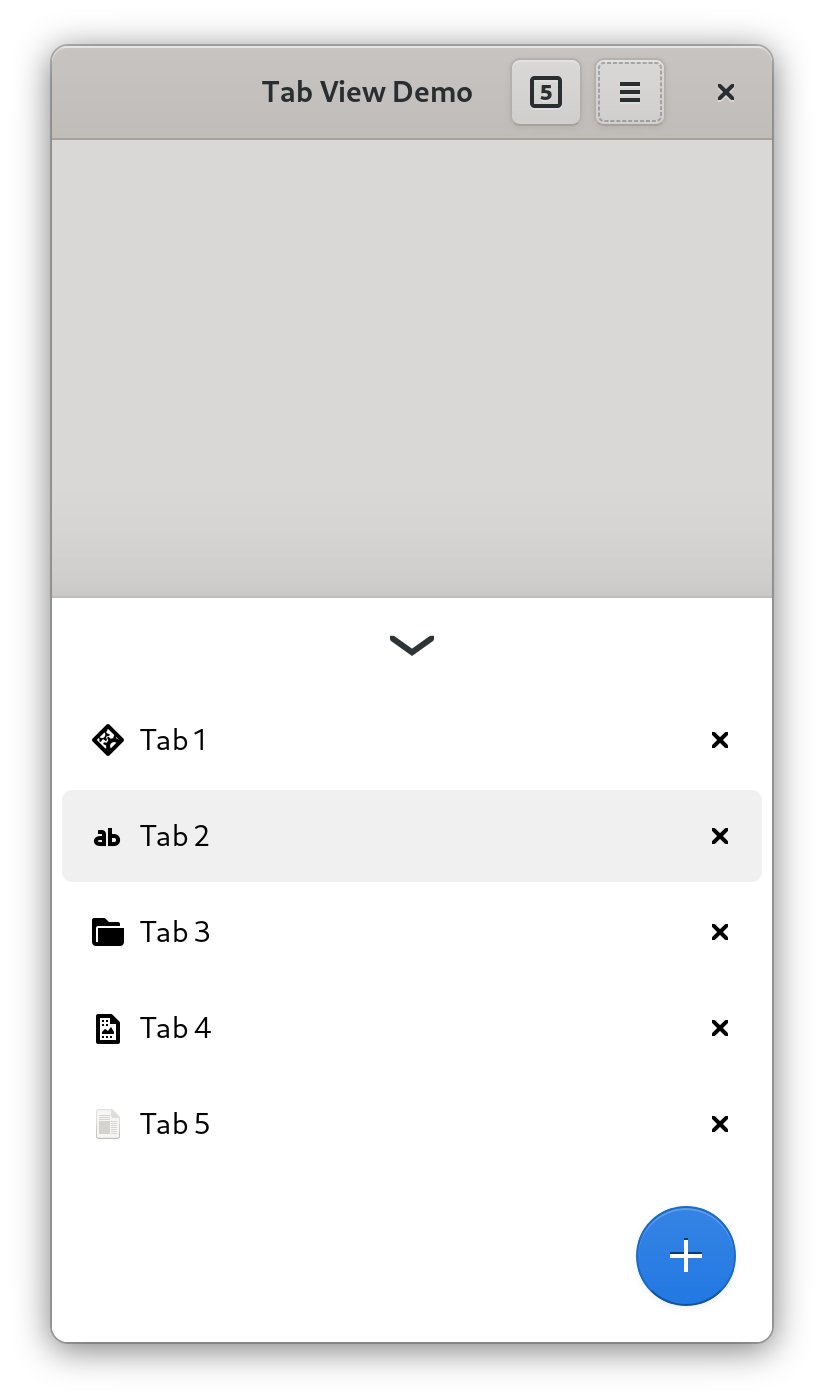
However, HdyTabBar isn’t adaptive either. Epiphany still ships the same mobile UI in 40. However, it makes it a lot easier to implement alternative switchers. For example, a HdyFlap-based bottom sheet:

A work-in-progress mobile tab switcher

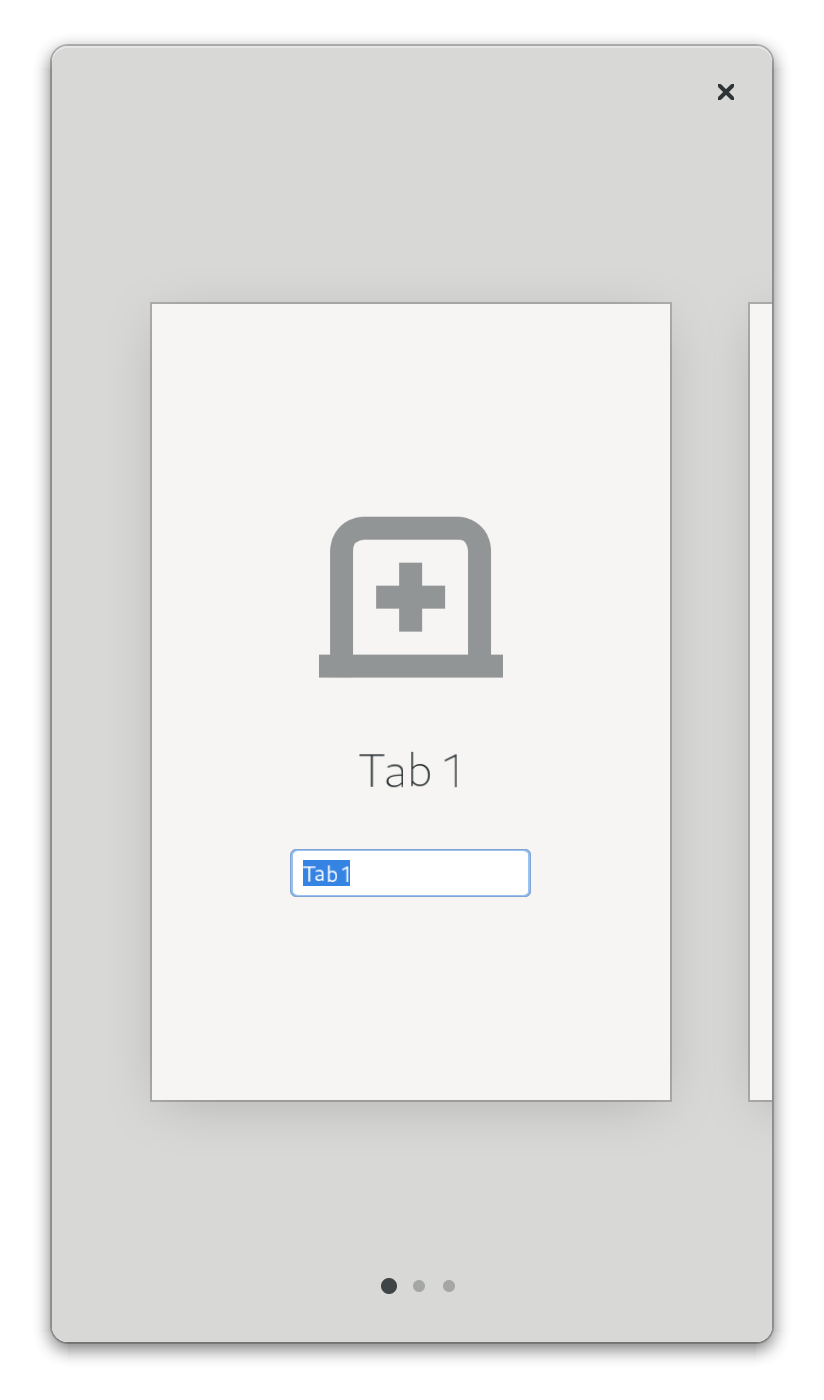
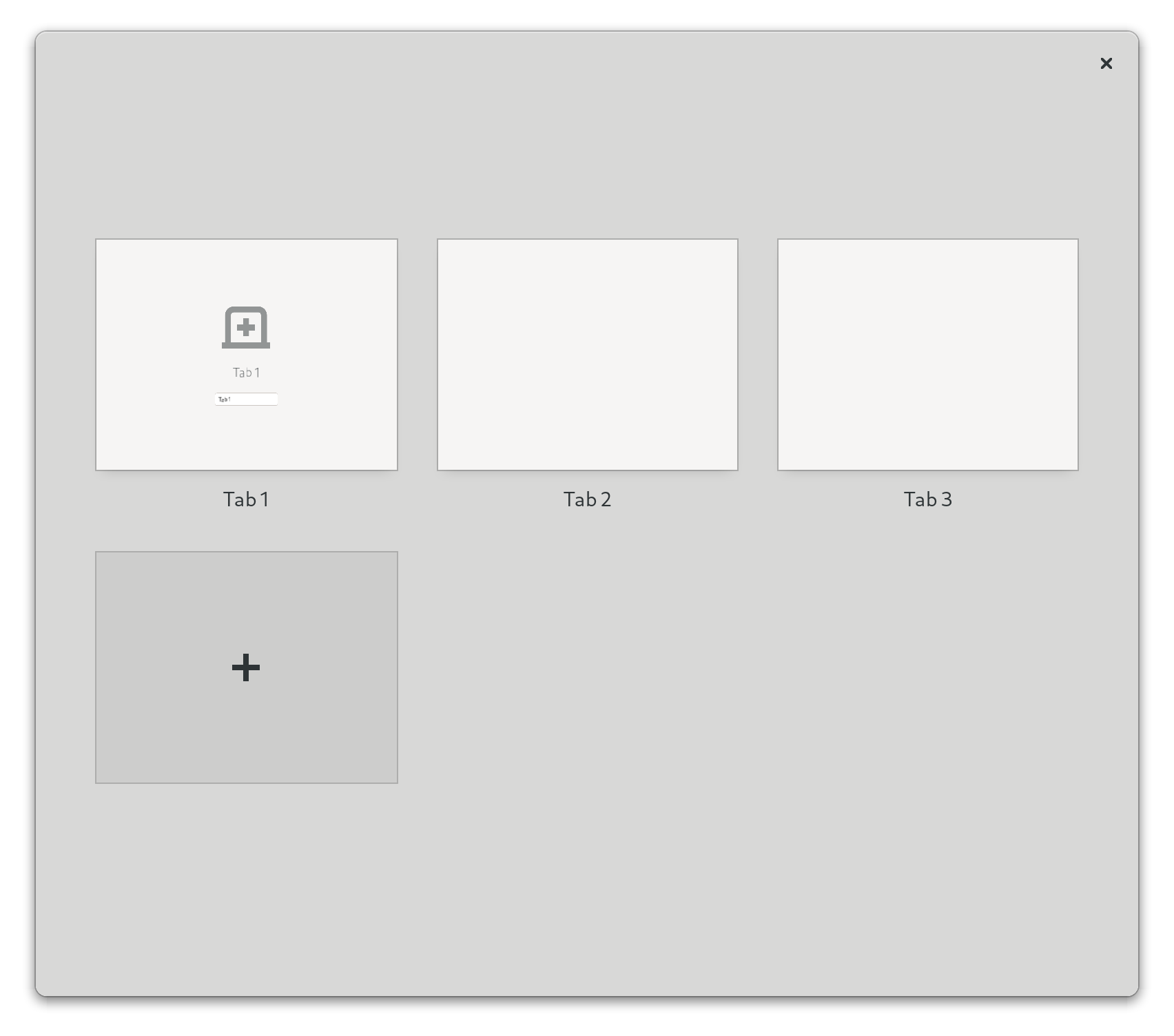
However, this is very basic. Mobile tab switchers are often very elaborate, for example using 3D stacks of cards, grids, carousels or lists with previews. Unfortunately, all of that is off limits in GTK 3. However, with GTK 4 it’s not, and we can do things such as this:

A work-in-progress carousel-based tab overview A work-in-progress grid-based tab overview

Having a proper overview would also allow to finally remove the tab popover from Epiphany, which is still there in 40, but only shows when the tab bar starts scrolling.

A GTK 4 port of HdyTabView and HdyTabBar is complete and fully working and just needs code review, though the overview is not a reusable widget yet.


Thanks to GNOME Design Team for designing it and answering my endless questions about how tiny and unimportant things should work, and Thibault Martin and Jordan Petridis for testing it.